A simpler app: your own sidebar, one Dashboard, and Undo
A simpler app
A shorter sidebar. The sidebar now holds Dashboard, Ask Raven, My Claims, Documents, Tools and Resources, plus Pathfinder if you are enrolled. Conditions, Action Plan and Connect VA open from your Dashboard, and their old links still work. Inbox is now a bell at the bottom of the sidebar, next to Feedback. Opening it clears the number.
Arrange your own sidebar. Manage sidebar, at the bottom of the sidebar, lets you show, hide and drag pages into the order you want. You can add back Conditions, Action Plan, Connect VA, Search records, Timeline and Notes, and pin any page you are on as its own link. Your layout is saved to your account, so it is the same on every device. Reset to default puts it back.
One Dashboard. Your Dashboard is now a set of cards. Three shortcuts sit across the top: Add a document, Ask a question and See what to file next. Below them are What to do next, Your claims, Your VA ratings, Service record, Profile, Things to check, Your conditions, and Medications and treatments. Your VA ratings and your service record moved here from the old Your records page, so everything is in one place. Old Your records links open the Dashboard.
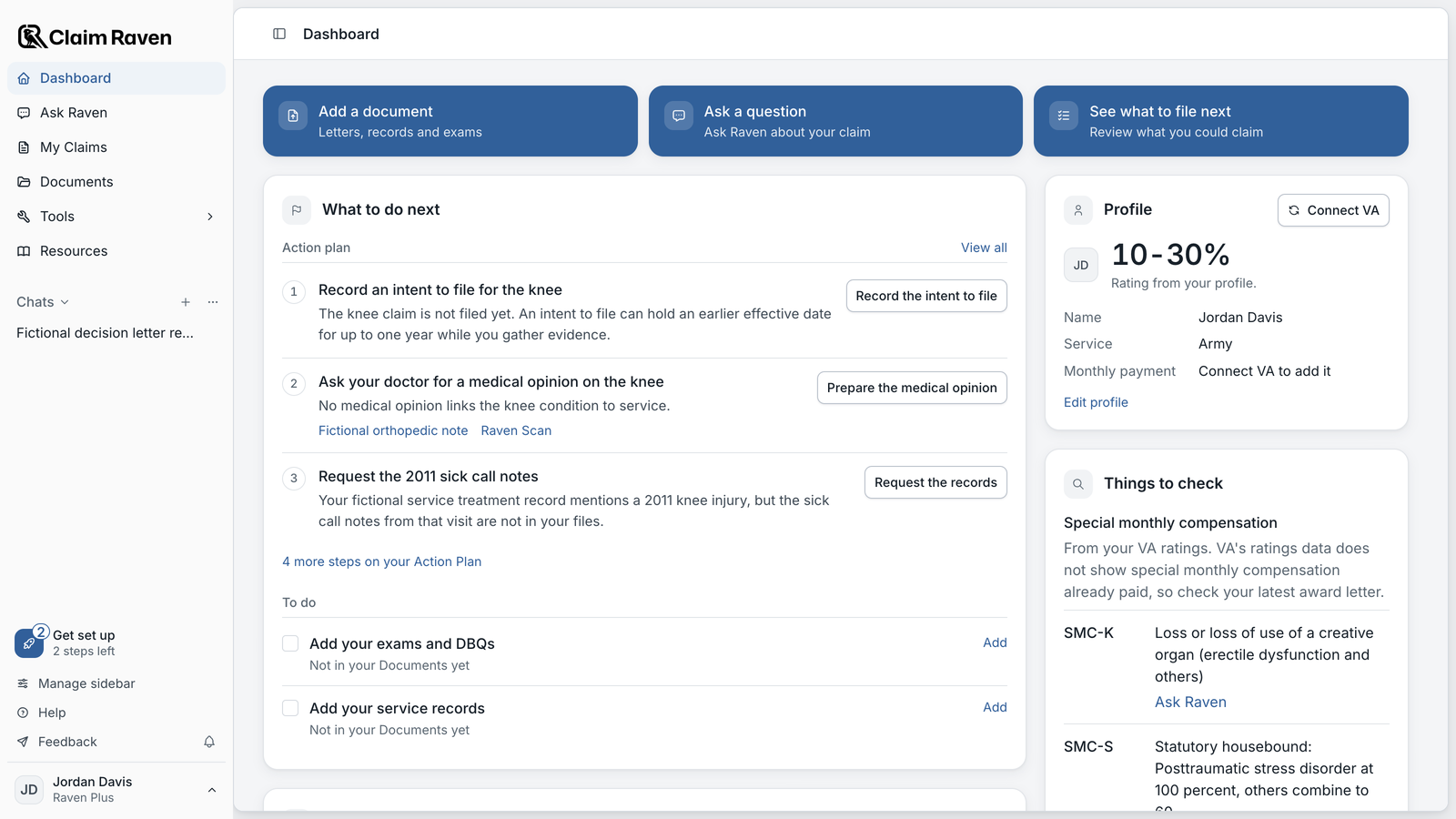
Get set up. Get set up, at the bottom of the sidebar, lists six steps: import your VA data, add your records, answer the goals questions, confirm your conditions, add your medications, and ask Raven your first question. It goes away once every step is done.
Tabs on Documents and Conditions. Documents has four tabs at the top: Files, Search, Timeline and Notes. Your storage now shows near the top of Files, with how many documents and how much space you have used. Conditions has three tabs: Conditions, Suggestions and Medications. On a phone, all three tabs now fit.
Medications and treatments in one list. The Medications tab is a full list. Add a medication or a treatment such as a CPAP, a brace or therapy, with the dose, how often, when you started and stopped, which of your conditions it is for, and notes. Archive keeps a stopped one as history. Your earlier list was carried over, and Ask Raven reads the new one.
Plain names for the tools. The app now says what each tool does. Raven Scan is now medical record review, Raven Eye is letter review and DBQ review, Raven Scribe is statement draft, Raven Cipher is Read my C-file, Raven Nexus is Build a nexus letter, and Raven Insights is VA data. Your PDFs use the new names too.
Earlier reports in Documents. Letter reviews, DBQ reviews and medical record reviews you saved on the older tool pages are now listed in Documents under Earlier reports, at the end of Files. Older pages that never saved anything now take you to the page where that job is done today.
Ask Raven
Undo. Archiving or pinning a chat, deleting one chat, archiving a claim, marking an Action Plan step done, dismissing a suggestion and archiving a condition now happen at once, with an Undo button for five seconds. Command Z (Control Z on Windows) works too.
Your half-typed message stays. If you start typing in a chat and leave, the text is still there when you come back to that chat. It is kept only in your browser, and it clears when you send it or sign out.
See when an answer is ready. In the sidebar chat list, a chat shows Writing an answer while Raven is still answering, and Answer ready when the answer came in while you were somewhere else.
Memories save again. All five memory types, including Condition, Goal and Progress, now save.
Statements and buddy letters
Better statements. Buddy letters are written in the voice of the person signing them and use every answer they gave. The lay statement form has three new optional boxes: the in-service event, your treatment, and devices you use, such as a cane, brace or CPAP. The optional clarity edit for lay statements works again. Every downloaded statement now starts with the same identifying details and ends with the same signing statement from VA Form 21-10210. Personal statements come back in paragraphs.
Buddy letter invites you can count on. Copying the invite link again gives the same link, so the one your supporter already has keeps working. If an invite email fails, you are told so. The "statement is ready" email now opens the finished letter.
Help, feedback and support
Tell me what to build next. The feature request board is open to every member. Post an idea, vote for the ones you want most, and comment on others. If something in the app gets in your way, or you wish it did something it does not, post it there. Your votes shape what I work on next. Found something broken? Post it on the bug report board. Feedback, at the bottom of the sidebar, takes you there already signed in with your Claim Raven account. Other members can read posts, so leave out claim details and personal information.
An updated Help Center. Every article at help.claimraven.com now matches the new layout and the new tool names, with new screenshots. Help, at the bottom of the sidebar, opens the article for the page you are on.
Two ways to reach me and the support team.
- The blue chat button in the bottom right corner. It is on most pages. Use it to message support, report a bug or suggest a feature. It steps aside on Ask Raven and Inbox so it never covers the box you type in.
- Your Inbox. Select the bell beside Feedback, then Write to support at the top of Inbox. Replies from support show in the same conversation and come to your email, and the bell shows a number when one arrives. Updates like this one show in Inbox too.
Help, then Contact support, still works too.Reports that explain the problem. When you contact support or send feedback, the page you were on, the app version, your device and the last error are attached, so you do not have to explain where it broke. You can see exactly what is attached before you send, and turn it off with one checkbox.
Smaller improvements and fixes
- When something does not load, the page now says what failed and offers Retry, instead of showing an empty page or default settings.
- Panels, menus and dialogs open and close instantly.
- On iPads and other touch screens, buttons and tabs keep their normal size while staying easy to tap.
- Each button now has one name, the same in its label, its tooltip, its menu and what a screen reader says.
- When a medical record review cannot read enough of a file, it now suggests a clearer copy of the same records instead of telling you to split out pages.
- The referral reward is now described as an amount off your next bill.
- Member pages no longer mention credits. Nothing about what you pay has changed.
- The website footer is simpler and shows the Veterans Crisis Line: dial 988, then press 1, or text 838255.
Behind the scenes
Most of the work since the last update does not show on a screen. 127 changes went in over about a day and a half. Here is what they do for you.
- A steadier app. Updates are checked more thoroughly before they go out, so fewer things break on your screen.
- Fixes reach you faster. Quicker automated checks mean a fix can go out the same day.
- Faster answers from support. Support messages now arrive in one place with the details needed to answer them, and a person reads and sends every reply.
- Stronger privacy protections. Tighter handling of your personal details across the app.
- An up-to-date reference library. VA's claims manual in the reference library updates every day.