Quick start: get up and running
Start with Get set up, bring in a snapshot of your VA data, and learn where each part of the app lives.
Written By Landon
Last updated 1 day ago
After you sign in, Get set up at the bottom of the sidebar lists six first steps. You can do them in any order. This guide covers the first one, importing your VA data, and then shows where the rest of the app lives.
Find Get set up
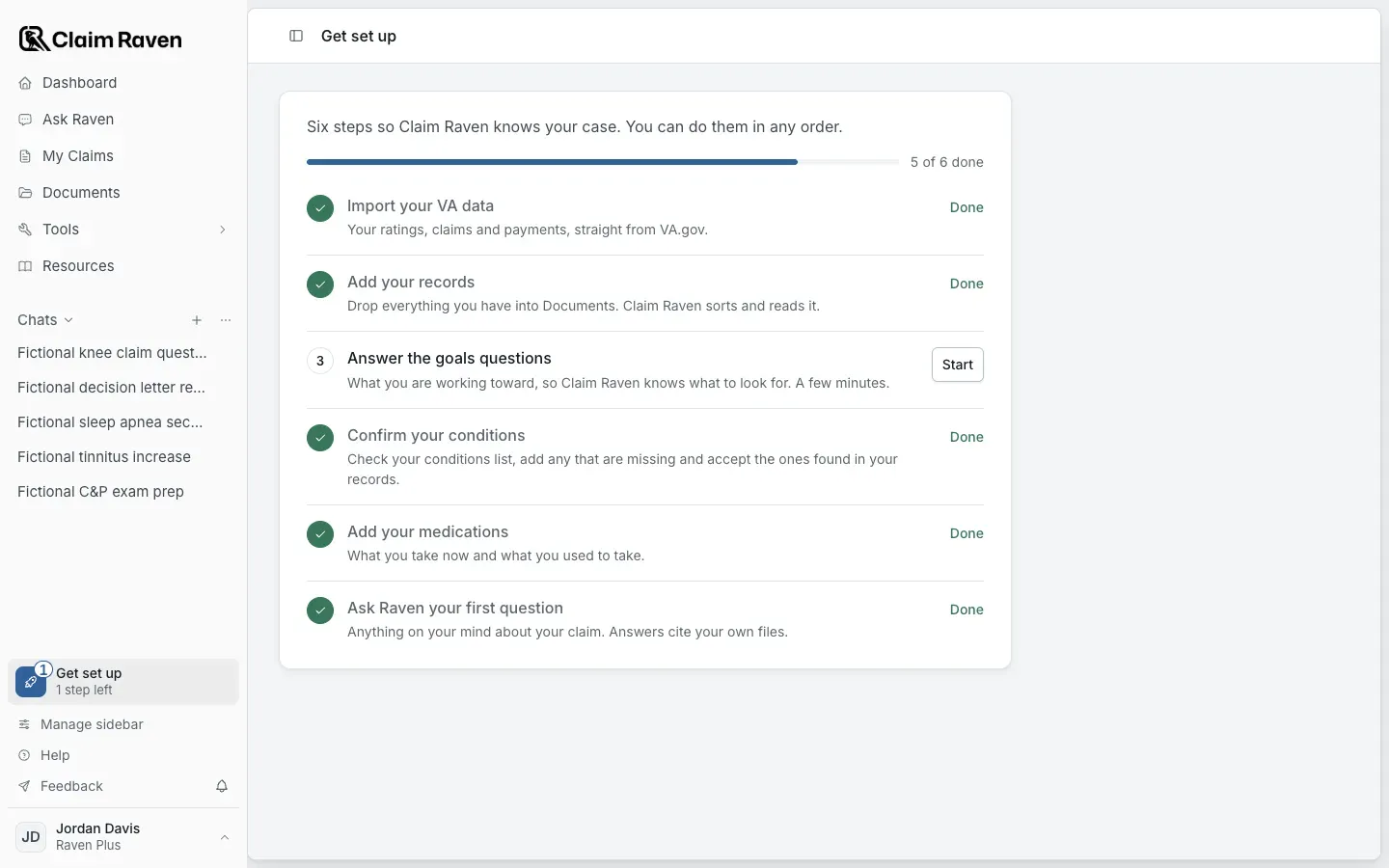
Actual app screen with fictional preview data.
All six steps
Before you start
- Sign in to your own Claim Raven account.
- Use a desktop or laptop for the VA data import. It uses a bookmark in your browser's bookmarks bar, which phone browsers do not have.
- Use a Login.gov or ID.me account that you already use to sign in to VA.gov. If you need an account, use the official VA.gov account-creation instructions linked below.
- Keep passwords, verification codes, Social Security numbers, VA file numbers, and claim documents out of support email and chat messages.
Import your VA data
Find Update VA data on the Dashboard
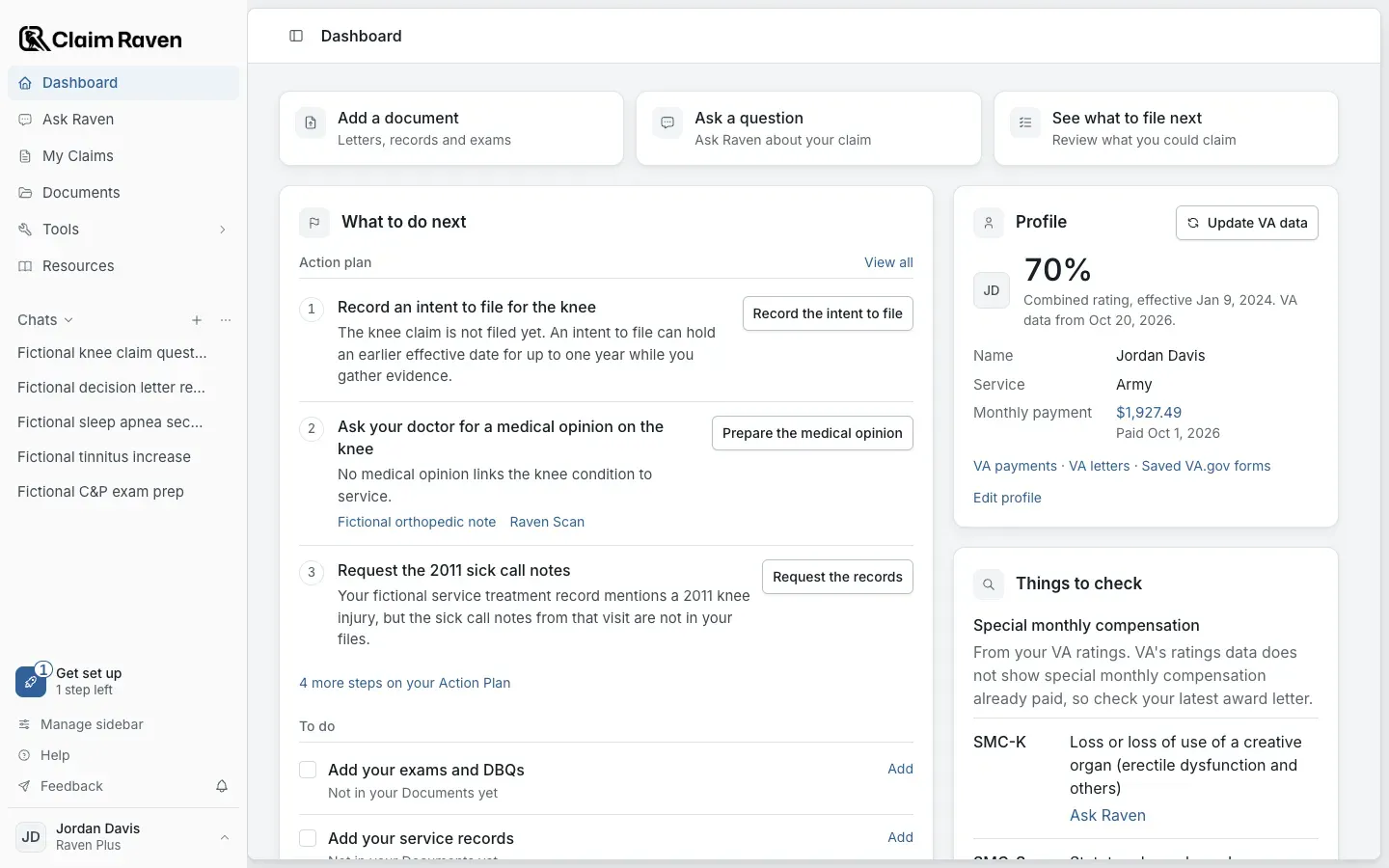
Actual app screen with fictional preview data. Replaces the retired Your records screen.
Open Connect VA
On the Dashboard, select Update VA data in the Profile card. Before your first import, the button says Connect VA. Get set up > Import your VA data > Start opens the same page.
Expected result: Connect VA opens.
Follow the steps on Connect VA
Select Walkthrough at the top of the page for a guided tour. The import copies a snapshot of your records from your own signed-in VA.gov session. Enter your VA.gov sign-in details only on VA.gov or the Login.gov or ID.me page.
Check what came in
Connect VA shows the date of the snapshot and what it holds. Read it before you rely on a record.
Expected result: The Dashboard shows your ratings, service record and payment with the date of your VA data, and My Claims shows your VA claims.
What happens next
You run the import (Veteran)
You sign in to VA.gov yourself and send a snapshot of your records to Claim Raven from Connect VA.
Claim Raven saves the snapshot (Claim Raven)
The snapshot holds only the records that were in that export. Claim Raven does not keep a live link to VA.gov.
You review your records (Veteran)
Check your ratings and service record on the Dashboard and your VA claims on My Claims. VA.gov and your VA notices stay the official record.
Update your snapshot
A VA Data Bridge snapshot contains the records available in that export. It is not a continuously refreshed connection. When you want newer records, select Update VA data on the Dashboard or Import updated snapshot at the top of Connect VA, and import again.
Follow the environment notice before you continue
Settings > Connections can show a card titled Import Your VA Data with a VA test connection notice. That connection uses VA test accounts and cannot load your personal records. If you see that notice, do not enter real Login.gov or ID.me credentials. Use VA Data Bridge instead. Claim Raven support should never ask you to send those credentials.
Find your way around
What the sidebar holds
- Your Ask Raven chats are listed under Chats, below Resources.
- At the bottom of the sidebar are Get set up while steps are left, then a row of icons just above your name: Manage sidebar, Help, Feedback and the bell, which opens your Inbox. Point at an icon to see its name.
- Help opens Ask about Claim Raven, a Help Center link for the page you are on, Contact support, a support phone number and Take a tour.
- Manage sidebar lets you show, hide and reorder pages. Dashboard and Ask Raven are always shown.
Learn the new layout
If this does not work
Connect VA says No claim detail was found in this snapshot
- Sign in to VA.gov in the same browser.
- Run the Claim Raven button again, then upload the new export.
A snapshot that holds no claims, ratings or appeals gives the Dashboard nothing new to show. If a new export still holds nothing, contact support with the time and the message shown, but do not send credentials or claim documents.
Settings shows the VA test connection notice
- Do not enter a real Login.gov or ID.me username, password, or verification code.
- Confirm that you are on the expected Claim Raven domain and read the complete notice.
Stop at the card and use VA Data Bridge from Connect VA instead. Contact support for environment status without sharing sensitive information.
Expected claims are not visible after an import
- Check the date of your VA data in the Profile card on the Dashboard.
- Compare the available Claim Raven data with VA.gov without assuming every VA record is in the snapshot.
Use the related claims-not-showing article and contact support if the mismatch continues. Keep real records and identifiers out of ordinary email.
Visit Get support if a safe retry does not resolve the problem.
Official VA account sources
Start your setup
Open Get set up to see which steps are left and start the next one.
Useful links
Related articles
Was this helpful?
Still need help? Ask the team