How do I upgrade my plan?
Compare plans, review the charge and renewal terms, and check your account after an upgrade.
Written By Landon
Last updated 1 day ago
Start on the Pricing page. Viewing plans does not create a purchase. A charge or subscription change happens only after you choose an eligible option, review the confirmation, and authorize the Stripe checkout or signed-in plan change.
Important: Review before you authorize payment
Confirm the plan name, billing period, amount due now, renewal amount, discount, and automatic-renewal disclosure shown in the actual flow. Help Center examples do not replace that confirmation.
Upgrade step by step
Find your subscription controls
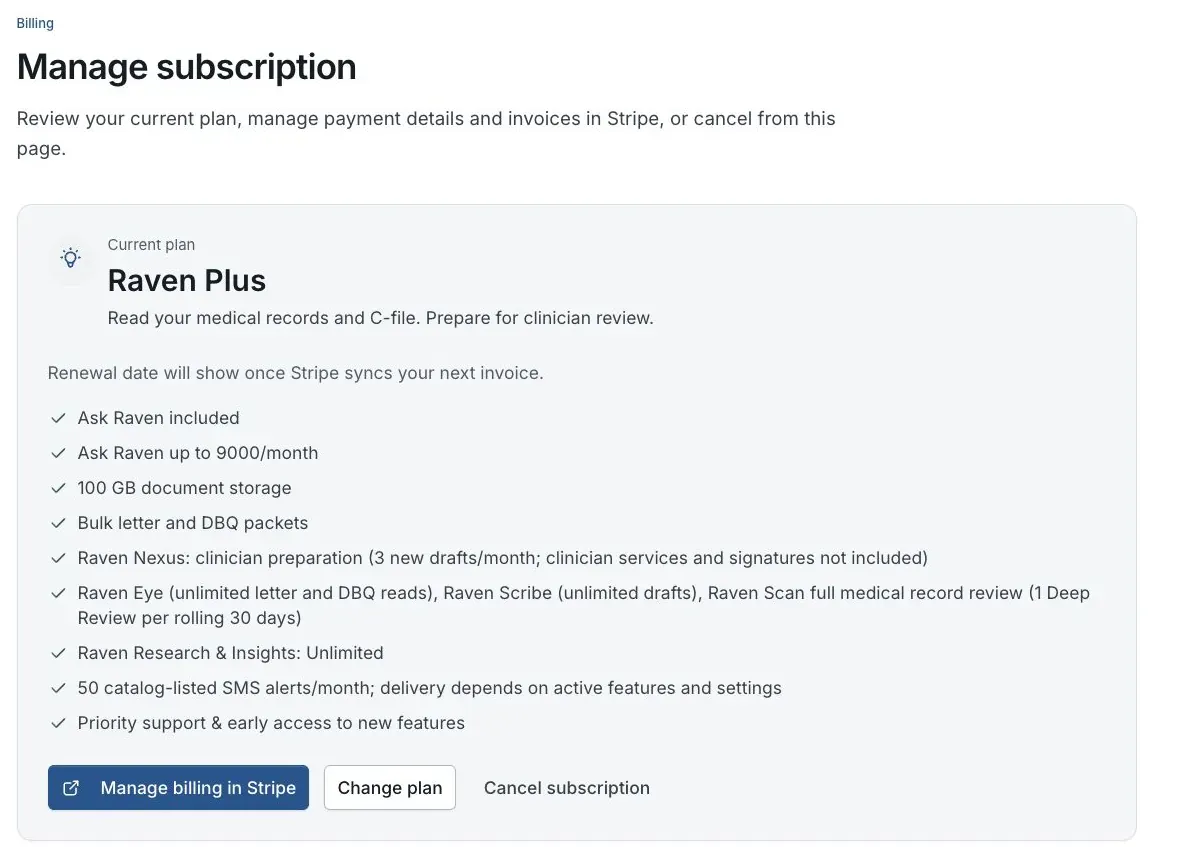
Billing preview for fictional member Jordan Davis. No real subscription is shown.
Open Pricing
Compare the current plan matrix and choose monthly, quarterly, or annual pricing only after reviewing the total billed amount, not just a monthly equivalent.
Expected result: You understand the cadence and total before continuing.
Choose the intended plan
Check included tools, recurring limits, unavailable features, and any separate one-time products. Pathfinder and one-time purchases do not become part of a recurring subscription unless the actual offer says so.
Expected result: The selected plan matches the features you intend to buy.
Review the confirmation
For an existing eligible subscription, read the displayed amount due today or credit treatment. For a new subscription, review the Stripe checkout summary and renewal disclosure.
Expected result: No charge or plan change is authorized without a visible review.
Authorize only when ready
Complete the payment or plan-change confirmation yourself. Claim Raven support and Help Center content cannot authorize it for you.
Expected result: The action reflects your explicit choice.
Verify the result
Return to Billing or reload your account and confirm the plan name and allowances. Save the Stripe receipt or invoice outside Claim Raven.
Expected result: The account and payment record agree.
Caution: Do not retry a payment blindly
If Stripe returns an error or the account does not update, check for a receipt before trying again. A failed-looking browser return can still require payment-status verification.
If this does not work
Stripe completed but the account still shows the old plan
- Save the Stripe receipt or session confirmation
- Reload Billing once
- Sign out and back in once if needed
- Do not submit a second payment before checking the first
Contact support with the account email, plan name, charge date, and non-sensitive receipt identifier. Do not send full card information.
The plan-change confirmation shows an unexpected charge or discount
- Confirm the selected tier and billing period
- Review the amount due today and future renewal
- Check whether an existing discount is already attached
- Cancel the confirmation without authorizing if it is not what you expected
Leave the plan unchanged and contact support before trying again.
Email help@claimraven.com for plan-selection questions. For a billing transaction, include only non-sensitive receipt details.
Review current plans
Open Pricing to compare the current offer. No checkout starts until you choose and confirm an option.
Related articles
Was this helpful?
Still need help? Ask the team