Claims Dashboard
Find your active and completed claims, check when the information was refreshed, and open a claim for details.
Written By Landon
Last updated 1 day ago
Find your VA claims
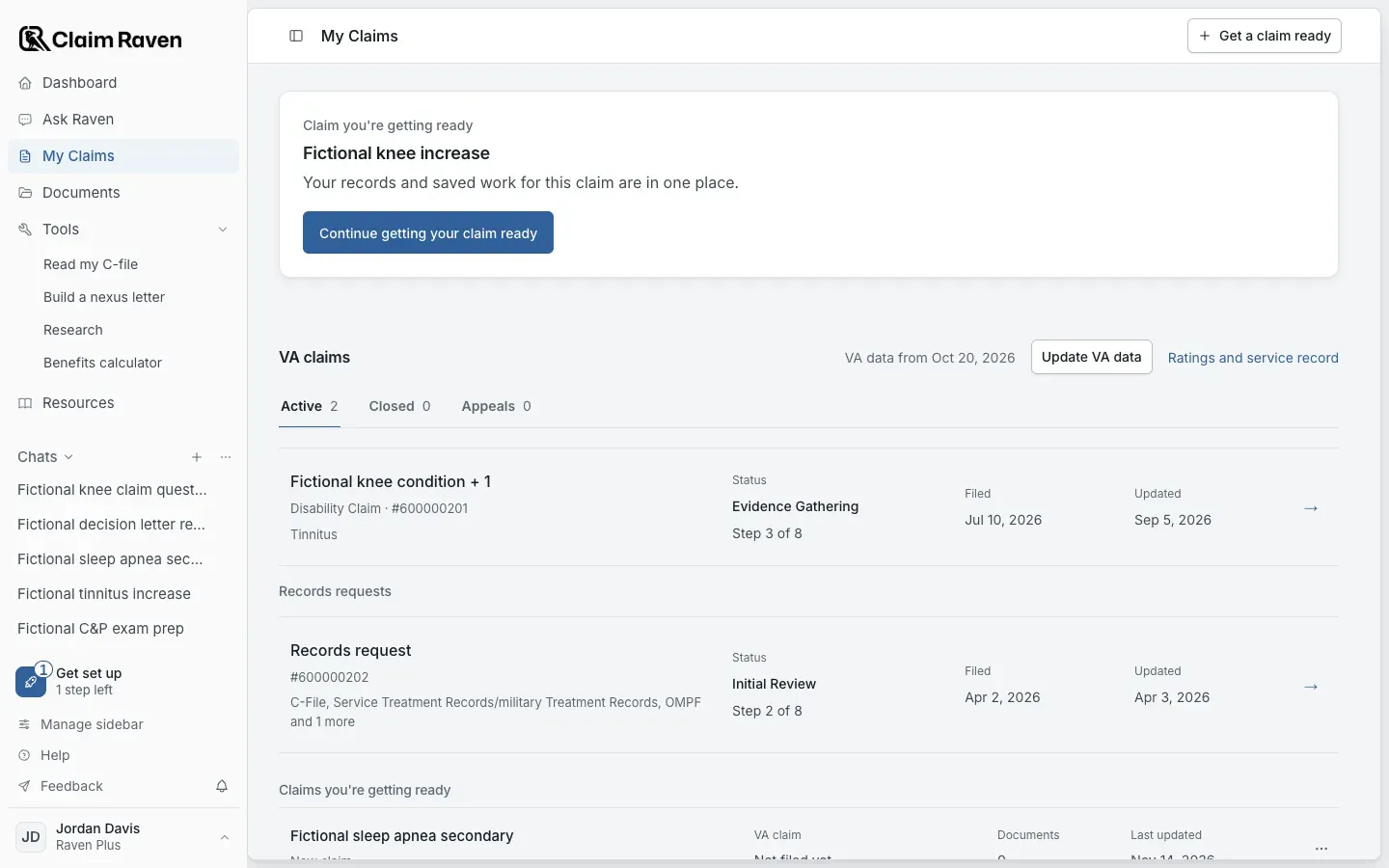
Actual app screen with fictional preview data.
The Claims Dashboard is now My Claims, the third item in the sidebar. It organizes claim records currently available to your Claim Raven account. Under VA claims, it separates claims into Active, Closed and Appeals tabs, provides search and pagination, and opens a detailed view for each claim. What appears depends on the source data available to your account and when it last refreshed.
Use VA.gov and the complete notice for consequential action
Claim Raven is not VA. Before relying on a status, requested action, deadline, decision, or submission route, verify it in VA.gov and the complete VA notice. Never wait for a dashboard refresh or alert before protecting a notice-stated date.
Review your claims
Open My Claims
Under VA claims, choose Active, Closed or Appeals. A claim you are getting ready is separate from these VA records.
Check the available source and date
Read the connection status and the Updated date shown for the claim. The visible record may be older than VA’s current information.
Open the claim row
Review the available details for the intended claim. A missing claim in this list does not prove VA has no record.
Verify the next action
Compare important requests, dates and decisions with VA.gov and the complete notice before acting.
What dashboard labels do and do not mean
Use dashboard fields as source-limited account information
No claim placeholders
Demo mode does not show sample claims or appeals as if they were personal records. If your account has no available claim data, My Claims should show an empty state instead of inventing a claim.
If this does not work
No claims appear
- Clear the search on My Claims and select the correct tab
- Confirm that you completed the intended VA Data Bridge or supported connection flow
- Select Refresh beside VA claims, or Update VA data when your claims come from an imported snapshot
- Check the claim directly in VA.gov
Treat VA.gov as the source of truth. If VA.gov shows the claim but Claim Raven still does not after a successful refresh, contact support with the screen state and no claim documents or identifying details.
The displayed status differs from VA.gov or a notice
- Compare the VA data date shown beside VA claims
- Refresh available claim data once
- Read the complete VA notice
- Preserve any notice-stated date while the mismatch is investigated
Follow the official notice and VA.gov, and report the Claim Raven mismatch without waiting for the dashboard to change.
Email help@claimraven.com with a synthetic description of the tab, status label, last-refresh behavior, and expected result. Do not attach a decision letter or include a claim number in a general support email.
Official sources
Open My Claims
Review the current available account data, then verify consequential information in VA.gov and the complete notice.
Related articles
Was this helpful?
Still need help? Ask the team