Create and check a deadline reminder
Set a reminder from a date you have checked and review its time and notification channel.
Written By Landon
Last updated 1 day ago
Standard and Plus include custom deadline reminders and deadline calendar downloads. Deadline reminders notify from dates and preferences the user has confirmed. A reminder is not a deadline calculation, filing receipt, guaranteed delivery, or substitute for the complete notice.
Customization changes your view, not your VA claim
A reminder, shortcut, layout, export, or hidden card does not calculate a deadline, submit a form, change VA data, delete underlying information, or guarantee notification delivery.
Create a reminder
Check the reminder fields
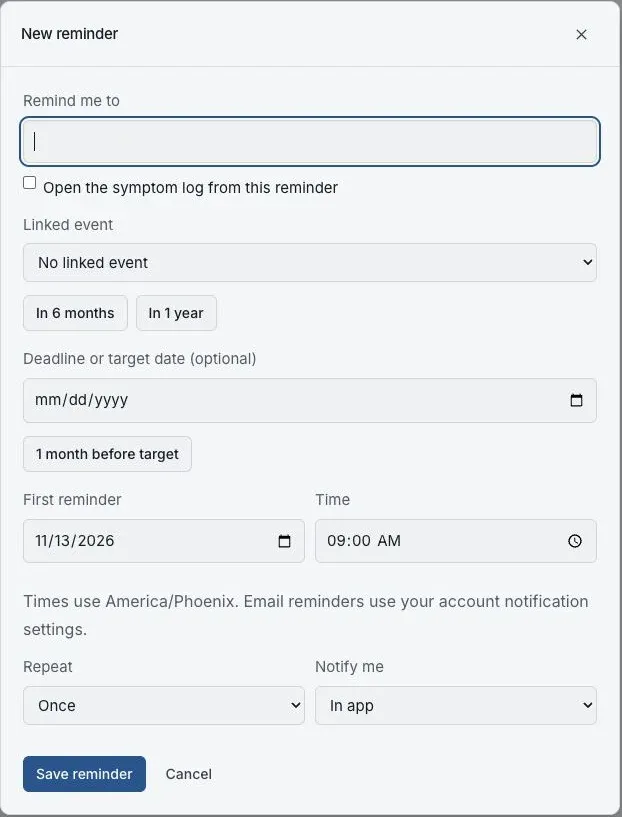
The new reminder form before any reminder is saved. The fictional preview uses in-app notifications.
Open Documents > Timeline > Reminders and select Add reminder
Timeline is a tab at the top of Documents. Reminders is one of its views, beside Timeline, Calendar and Tracks.
Describe the task
Enter a short title in Remind me to. Choose a Linked event if this reminder belongs with a saved Timeline event.
Check the dates and time
If needed, enter the Deadline or target date from your source. Set First reminder and Time, and check the timezone shown below them. A date shortcut does not calculate a VA deadline.
Choose frequency and channel
Use Repeat to choose Once, Daily or Weekly. In Notify me, choose In app or Email + in app. Email reminders also use your account notification settings.
Save and check the list
Choose Save reminder. Confirm the title, next date and channel in Reminders. Use Edit to correct a mistake, and keep the original notice and your independent calendar.
If this does not work
A reminder is missing or has the wrong date.
- Check the original notice and compare its date with the date you entered.
- Check the timezone, repeat setting and whether the reminder is enabled.
- For email, check your notification preferences and inbox without relying on delivery.
Correct the reminder and check the saved list. Use your original notice and independent calendar for deadlines.
Open your reminders
Review the dates and channels you have chosen.
Useful links
Related articles
Was this helpful?
Still need help? Ask the team