Review one document and check what was read
Start the appropriate review for a saved document and check the result against its readable pages.
Written By Landon
Last updated 1 day ago
Read opens the available reading for a saved original. A basic summary and a specialist letter or DBQ review are different actions; check the current offer and allowance before starting.
Letter and DBQ reviews were formerly called Raven Eye. They now start from the document in Documents. To talk through a VA letter instead, start the Understand a VA letter task in Ask Raven.
Start a review
Find the controls
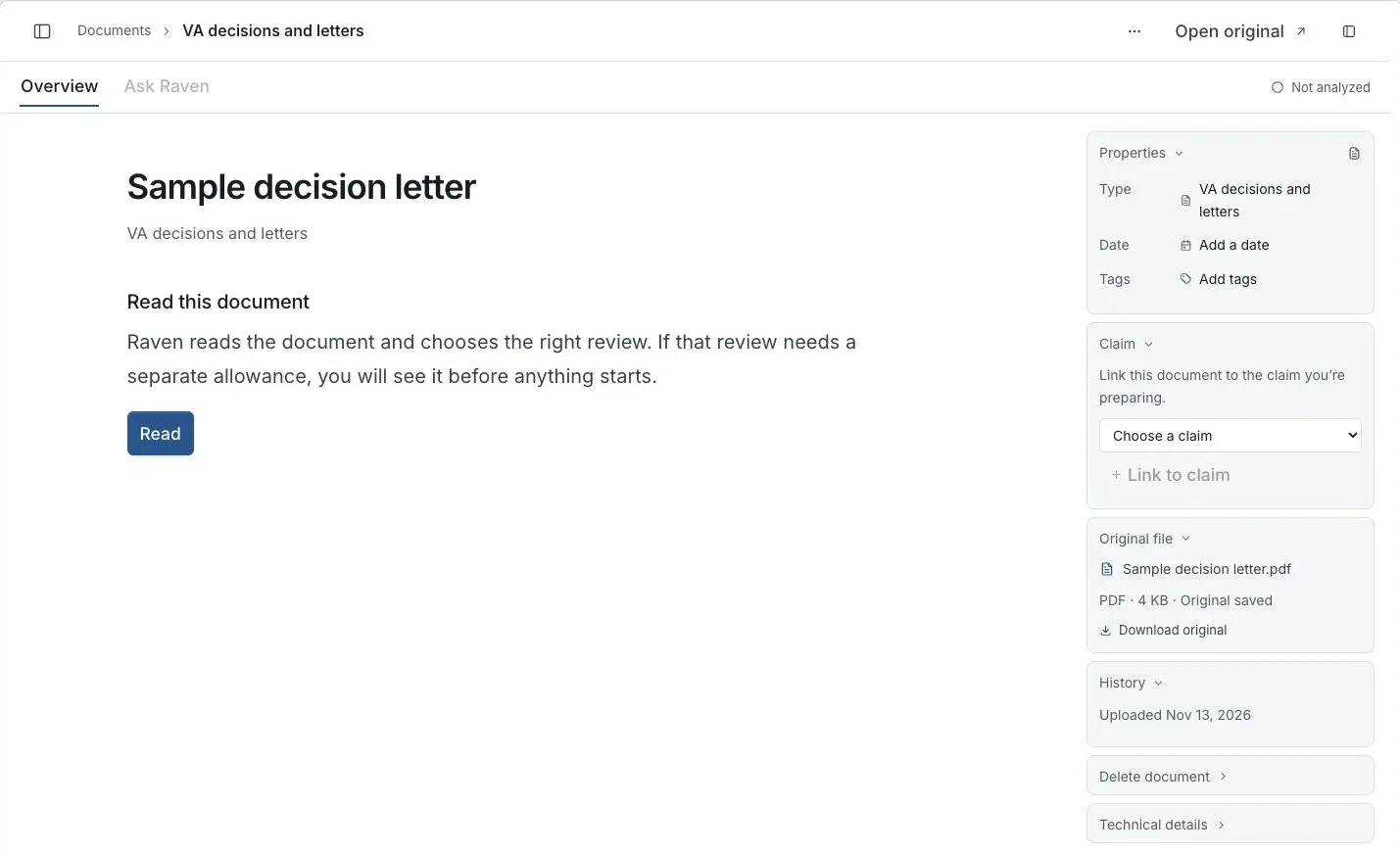
Actual app screen with fictional preview data.
Open the document in Documents
Check the PDF and document type. Use Open original when you need to look at the file.
Check the offer and select Read
The card shows the consent information and, for a letter or DBQ, how many reviews you have left.
Choose a review type if asked
If Raven cannot tell which review fits, the page asks What kind of document is this? Pick the type, or use More options > Choose review type. In the window, check Document type and how many pages were readable.
Start the review that fits
Use Save basic review for a summary, or check the allowance before Start letter review or Start DBQ review. A Disability Benefits Questionnaire (DBQ) records examination findings.
A letter or DBQ can keep a basic summary instead of starting the specialist review. Use the current allowance shown in the app; storage and specialist analysis have separate limits.
To review several letters at once, choose Select on the Files tab, check the letters, then use Actions > Analyze letters.
A medical record shows Scan instead. The medical record review lists the conditions it finds and keeps its report with the original.
Open the saved result
Return to the same document, or open its result notice in Inbox. Inbox opens from the bell beside Feedback at the bottom of the sidebar. Check the summary, expand the full review where available, and open the supporting original pages.
Check how many pages were readable. A result based on part of a document is only about the content read. An unreadable page does not establish that information is missing from your records.
Handle an incomplete review
If the reading is uncertain, check the original and correct the type or choose the available basic summary. If a review fails, the document shows Try this document again. Check the message, then use Try again.
A failed follow-up review can leave an earlier saved result available. Check the result and status you are viewing before treating it as the latest review. Do not upload another copy merely to reopen a saved result.
When a result lists next steps, Add to my plan puts them on your Action Plan. Check them before you add them. Changing a task does not rewrite the original PDF.
If this does not work
The reading or allowance needs attention
- Check the original and the readable-page coverage.
- Use Try again on the document when a failed review offers it, or when its allowance could not load.
Choose the available basic review or the correct specialist action deliberately. Reopen the same original instead of creating another upload just to recover a saved result.
Useful links
Related articles
Was this helpful?
Still need help? Ask the team