Save exam prep and return to it later
Save your exam preparation, notes and checklist, then reopen them before your appointment.
Written By Landon
Last updated 1 day ago
Keep the checklist and examples you want available for your C&P exam in one saved preparation. An exam task in Action Plan can return you to that same prep.
Save your preparation
Start with the intended condition
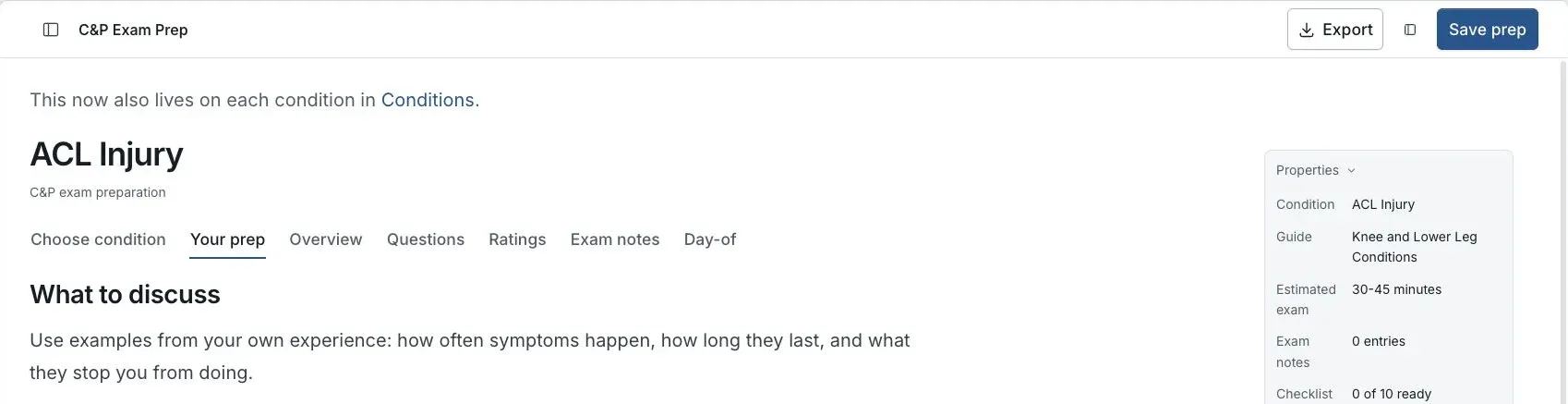
Actual app screen with fictional preview data.
Open C&P exam prep
From the Dashboard, open Action plan > View all and select Prepare for the exam on the exam task. Or open the condition from Your conditions > View all and select Prepare for my exam. Check the selected condition.
Review your prep
Use Your prep and Questions for the guide, then Day-of for the checklist.
Open Exam notes to write a dated example
Add it to the entries when ready, or leave an unfinished note to continue later.
Select Save prep in the top bar
On a phone the button is called Save. Wait for the saved time before leaving.
The save keeps the selected condition, checklist, dated entries, unfinished note and any existing personalization in that plan. Saving or reopening does not generate a new AI result.
Exam notes belong to this preparation. They do not create symptom entries in Timeline.
Continue from your preparation
Properties shows the condition, source forms, note count and checklist progress. On a phone, use Show prep details in the top bar to open the panel.
Related work links to the condition evidence, or to the claim's documents when the prep has a claim but no linked condition. Return to this task opens the connected Action Plan task; Open related tasks keeps the available condition or claim context.
Continue preparing offers Add an exam note and Review and export the day-of sheet. To keep a copy, open Export in the top bar and choose Print report or Download Word. Review the exported file before relying on it at your appointment.
Reopen the same prep
Open Saved prep and recovery, choose the saved preparation and select Open prep. Check its condition and saved time. On the condition's page in Conditions, Continue my exam prep opens your latest prep for that condition.
When you started from an exam task, a confirmed save can connect to that task. Back to Action Plan returns to it, and its Saved exam prep source opens the exact plan. Saving does not change task progress, notes, dates or reminders.
If the plan saves but its task link fails, select Connect saved prep. It does not rerun AI.
Recover an interrupted save
Keep the page open and use its recovery controls. Retry this save checks or finishes the same save. If another version was saved, choose Open saved version, or Save my version as new prep to keep yours separately.
If browser storage is unavailable, recovery may last only while the page stays open. Wait for a confirmed save before closing or refreshing. A recovery notice alone does not mean your account has the latest changes.
Older browser-only prep without a known account is not imported automatically. Existing print or guide downloads should be checked separately; do not assume they include every saved note or personalization.
If this does not work
The latest preparation is not confirmed saved
- Keep the page open and read Saved prep and recovery.
- Check the selected condition and the saved time.
Use Retry save for an unconfirmed operation. If a conflict offers the account’s saved version or a separate prep, make that choice deliberately before closing the page.
For product help, describe the page, the message shown and what you were trying to do. Keep private records and account details out of screenshots.
Useful links
Related articles
Was this helpful?
Still need help? Ask the team