Prepare a nexus letter draft for your clinician
Choose records for a nexus letter draft, review the saved result and reopen the same assessment.
Written By Landon
Last updated 1 day ago
Build a nexus letter helps you gather selected evidence for a medical opinion and prepare a draft for your clinician to review. It was formerly called Raven Nexus. Start with the condition and connection you want examined, then choose the records that support that question.
Choose the condition and your records
Start with the condition
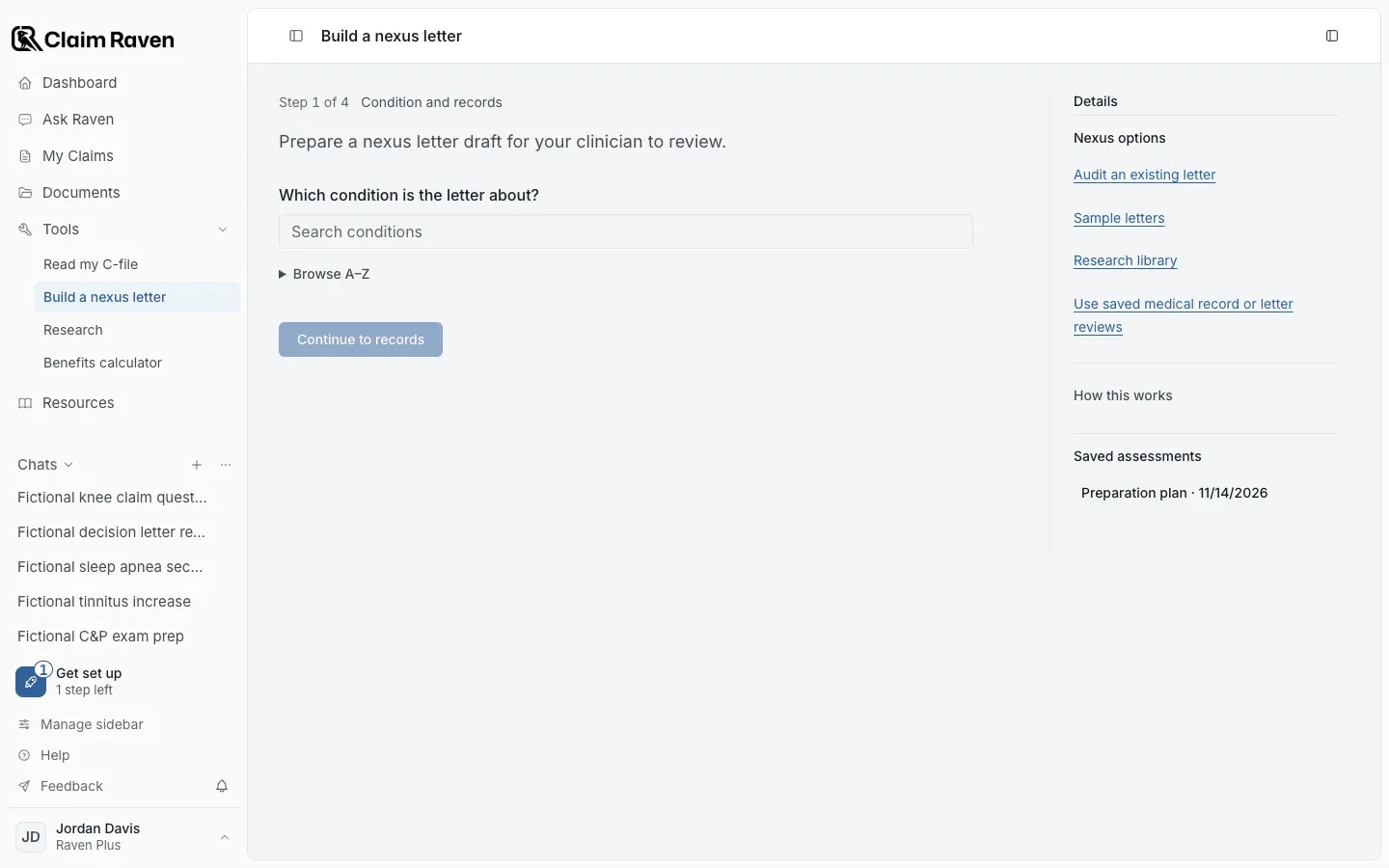
Actual app screen with fictional preview data.
Select Tools > Build a nexus letter in the sidebar
You can also start from the Action Plan step Prepare the medical opinion, or from Prepare a medical opinion on a condition's Overview. Check the condition and claim before you continue.
Answer Which condition is the letter about?
Choose the connection you want reviewed, then select Continue to records.
Select your saved records
If a saved original shows Prepare for Nexus, select that button, check the original and finish the identity review. Then select the record.
Select Review my sources
First check the document and page limits, consent and access information shown on the page.
Expected result: The assessment runs and its result is saved.
- Opening Build a nexus letter from a condition does not attach every linked review on its own. Oversized or incomplete sources can need attention before the assessment can start.
- To use a medical record review or letter review you saved earlier, select Use saved medical record or letter reviews under Nexus options.
Read and keep the result
Check the saved assessment and the evidence it used. Choose the facts you want to keep before preparing a draft, where your access allows it. Leave undated excerpts undated; do not add a date just to make a citation look complete.
Check what the result is now. It may be an evidence packet or a draft that needs more information. A generated draft is material for your clinician to review, not a signed medical opinion.
Reopen an assessment
Open Saved assessments in the Details panel to reopen an assessment and any saved draft. One that shows Not finished, continue picks up where it stopped.
When you started from an Action Plan step, select Link to task to connect the saved assessment to that step. If the link fails, select Retry task link. This retries the connection without running another assessment.
Use the export control for the output you need and open the downloaded file to check it. Saving an assessment, exporting a file and sending it to a clinician are separate actions. None of them completes the Action Plan step on its own.
If this does not work
An assessment or task link needs attention
- Check Saved assessments before starting another assessment.
- If the assessment is saved but its task link failed, select Retry task link when it is offered.
Retry task link reconnects the saved assessment. It does not run another assessment or write a new letter.
Useful links
Related articles
Was this helpful?
Still need help? Ask the team