Keep a list of your medications and treatments
Add the medications and treatments you use or have used, link them to your conditions and keep stopped ones as history.
Written By Landon
Last updated 1 day ago
The Medications tab in Conditions keeps one list of the medications and treatments you use or have used. A treatment can be CPAP, a brace or therapy. Each entry can hold the dose, how often you use it, whether you use it now, when you started and stopped, which conditions it is for and your notes.
The list is for your own records. It is not a prescription or a reminder to take anything.
Open your list
On the Dashboard, select View all beside Medications and treatments. Add a medication on the same card opens the form straight away. You can also open Conditions and select the Medications tab, or use the Add your medications step in Get set up.
Add a medication or treatment
The add form
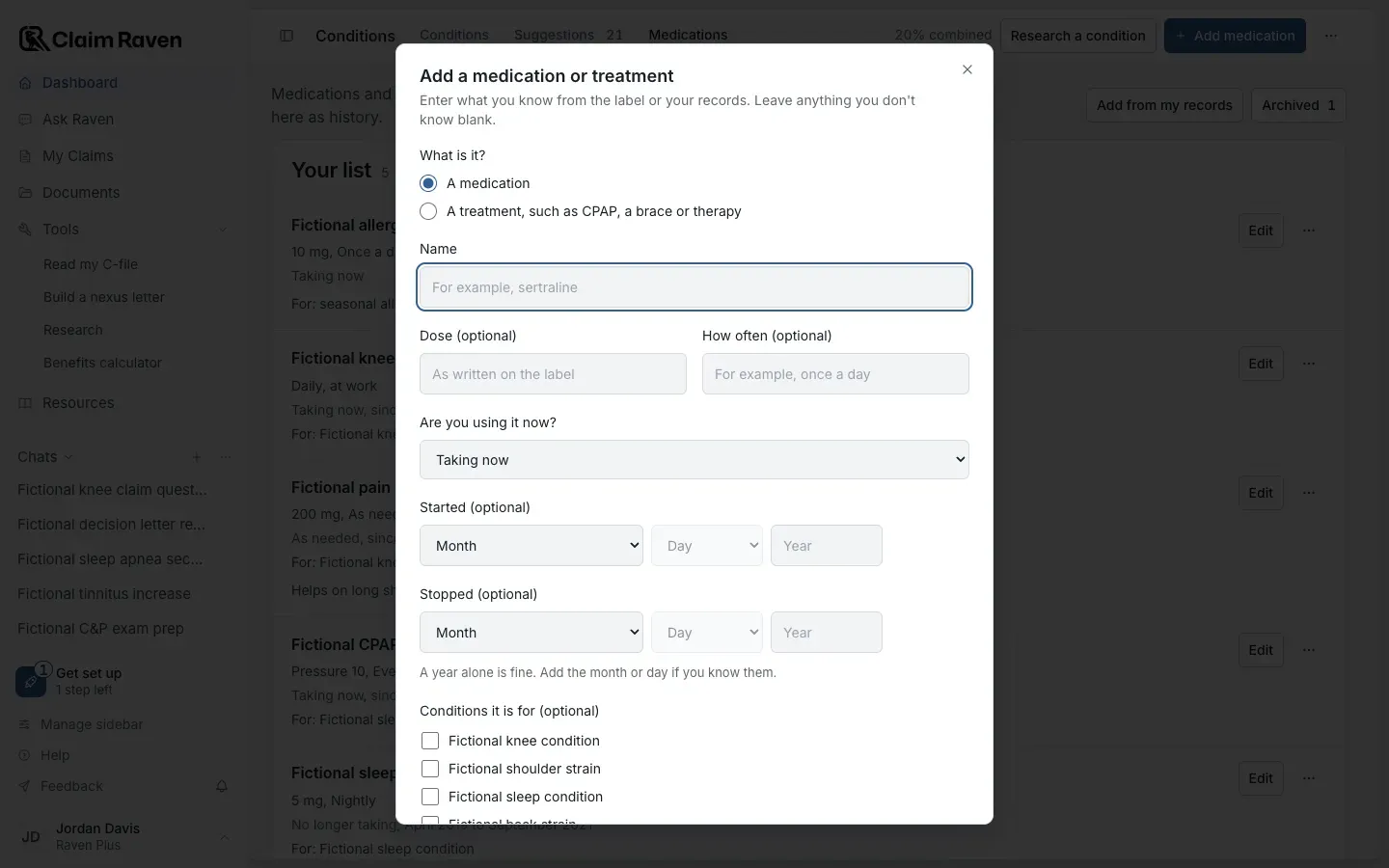
Actual app screen with fictional preview data.
Select Add medication
It is the blue button at the top of the Medications tab.
Expected result: The Add a medication or treatment form opens.
Under What is it?, choose A medication or A treatment, such as CPAP, a brace or therapy
Then enter the Name. Enter what you know from the label or your records and leave anything you don't know blank.
Fill in Dose (optional) and How often (optional)
Copy the dose as written on the label. For a treatment, the dose can be a setting, such as a CPAP pressure.
Answer Are you using it now?
Choose Taking now, As needed, No longer taking or Not sure.
Add the Started (optional) and Stopped (optional) dates
A year alone is fine. Add the month or day if you know them. The stop date cannot be before the start date.
Check the conditions it is for
Under Conditions it is for (optional), check each condition it treats. The choices come from your Conditions list, so add a condition there first if it is missing. You can link up to 20 conditions.
Select Add to my list
Add anything else under Notes (optional) first, such as side effects or why it was changed.
Expected result: The entry appears on Your list.
- Your list shows the newest first, by start date. An entry with no start date is placed by when you added it.
- Entries you stopped stay on the list as history. Mark them No longer taking instead of deleting them.
- For: under an entry names the conditions it is linked to.
Add medications from your records
Add from my records looks for medicines named in your own records and lets you pick the ones to put on your list. Nothing is added until you choose.
Medicines found in your records
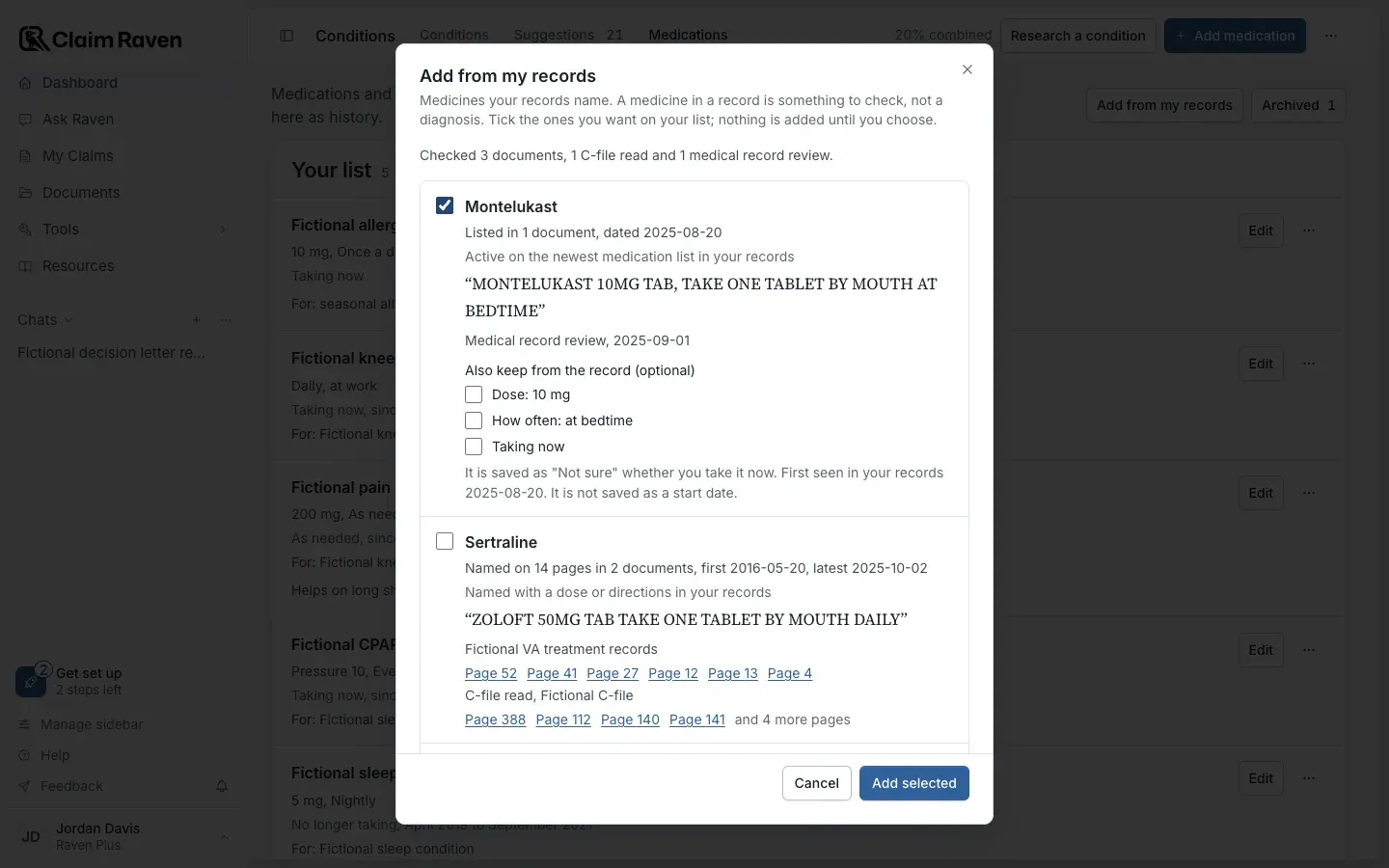
Actual app screen with fictional preview data.
Select Add from my records
It is beside Archived at the top of the Medications tab.
Expected result: A window lists each medicine your records name, with what was checked at the top.
Check each medicine
Each one shows how many pages and documents name it, the dates, a line quoted from the record and links that open the record at that page. A medicine in a record is something to check, not a diagnosis.
Tick the medicines you want on your list
Nothing is ticked at first. Under a ticked medicine, Also keep from the record (optional) offers the dose, how often and whether you take it now, when the record gives them. Tick only the ones that are right.
Select Add selected
The button stays at the bottom of the window while you scroll.
Expected result: The medicines you ticked appear on Your list.
- It looks in the records you saved in Documents once they have been read, your C-file reads and your latest medical record review.
- A brand name is listed under its generic name. For example, Flomax is listed as tamsulosin.
- Medicines named only in an allergy list or a drug test result are left out.
- Medicines already on your list, archived ones included, are left out.
- The first date a medicine appears in your records is not saved as a start date. If you leave Taking now unticked, the entry is saved as Not sure.
- If a page's details did not match yours, the medicine says This page may not be yours. Check that page before you add it.
- When more medicines are found than the window shows, add the ones you want, then look again to see the rest.
Change an entry
Your list
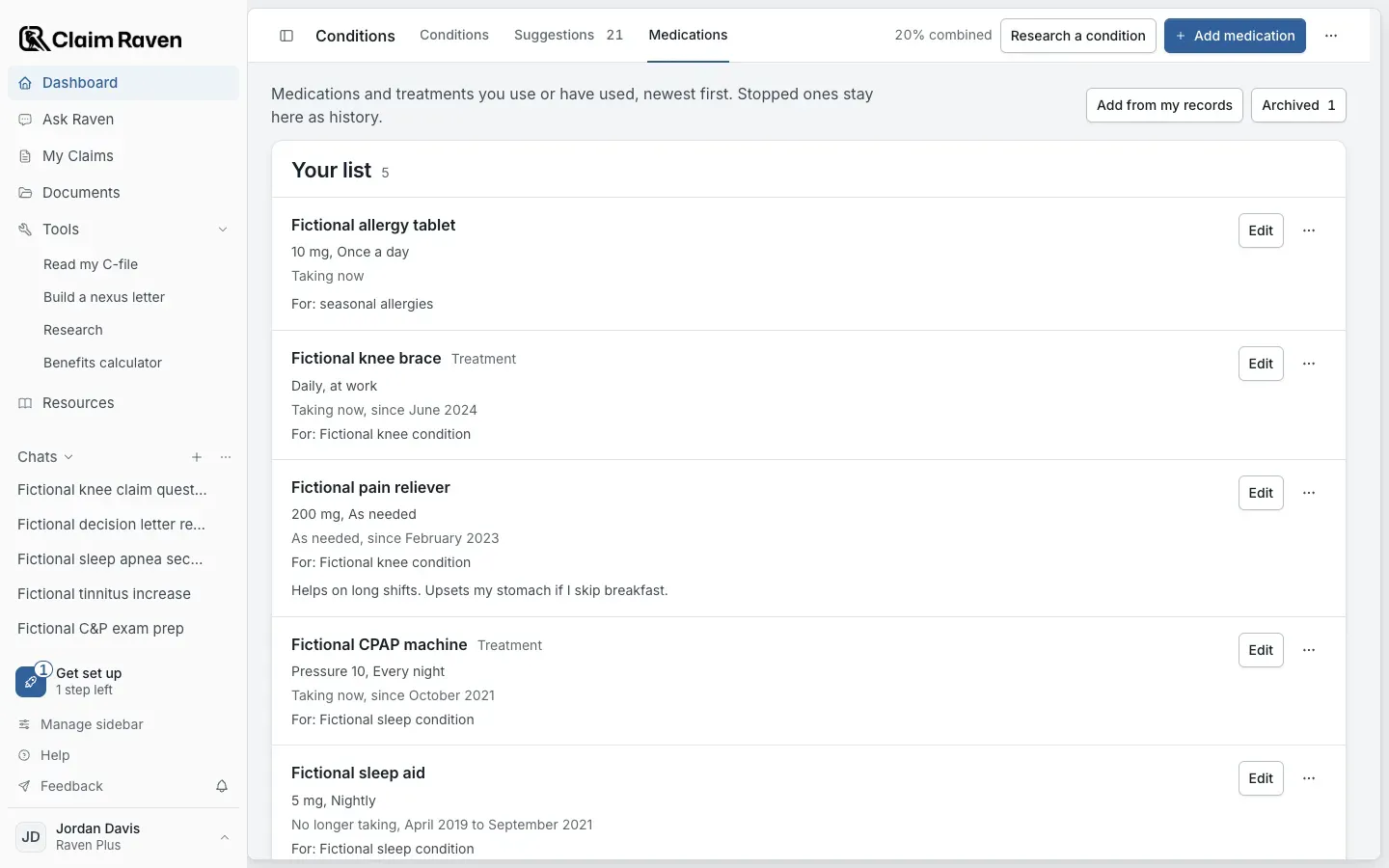
Actual app screen with fictional preview data.
Select Edit beside the entry, change what you need and select Save changes.
Archive or restore an entry
To take an entry off your list but keep it, select More options (the three dots beside Edit) > Archive. A notice offers Undo for five seconds. Command Z (Control Z on Windows) also works while the notice shows, unless you are typing in a field.
Archived entries wait under Archived at the top of the tab, with their count. Select Archived, then select Restore beside the entry to put it back on your list. Select Back to your list to return.
Delete an entry for good
Select More options > Delete for good, then select Delete for good again to confirm. This deletes the entry and its notes and cannot be undone. Your conditions do not change. To keep the entry as history, archive it instead.
How Ask Raven uses your list
Ask Raven reads the entries on your list as things you told it, not as medical records or proof of a diagnosis. It leaves out archived entries and entries marked No longer taking.
If this does not work
An entry is missing from your list
- Select Archived at the top of the Medications tab, if it is shown.
- Check entries marked No longer taking. They stay on the list as history.
Restore an archived entry to put it back on your list. A deleted entry cannot be brought back; add it again.
A condition is not offered under Conditions it is for
- Check that the condition is on the Conditions tab and not archived.
- An archived condition is offered only when the entry is already linked to it.
Add or restore the condition on the Conditions tab, then edit the entry and check it.
Add from my records finds no medicines
- If it says there are no read records to look in yet, save your records in Documents and wait until they have been read.
- Medicines already on your list, archived ones included, are not offered again.
Add the medicine yourself with Add medication.
For product help, describe the page, the message shown and what you were trying to do. Keep private records and account details out of screenshots.
Useful links
Related articles
Was this helpful?
Still need help? Ask the team