Find earlier reports in Documents
Open the letter, DBQ and medical record reviews you saved on the old tool pages. Documents now keeps them under Earlier reports.
Written By Landon
Last updated 1 day ago
Before reviews moved to Documents, you could save letter reviews, DBQ reviews and medical record reviews on separate tool pages. Those pages were formerly called Raven Eye and Raven Scan. Your saved results are kept, and Documents lists them in one group.
Open an earlier report
Earlier reports in Documents
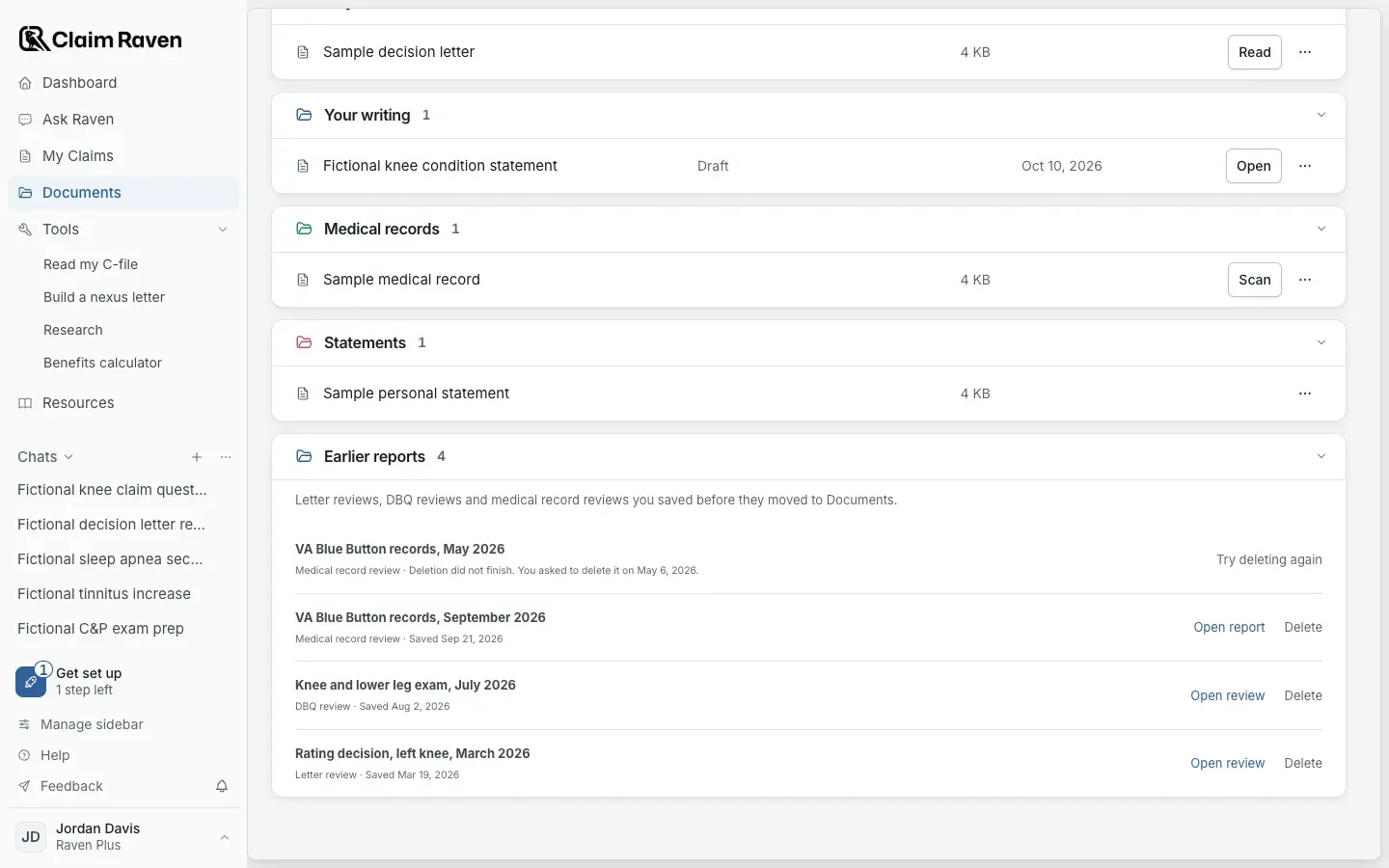
Actual app screen with fictional preview data.
Open Documents and stay on the Files tab
Earlier reports is the last group in the list. It shows only when you have earlier reports.
Find the report under Earlier reports
Each row shows the title, the kind of review and the date you saved it. Select the group's name to open or close it. Typing in the search box above the list also finds earlier reports by title.
Select Open review or Open report
Letter reviews and DBQ reviews show Open review. Medical record reviews show Open report.
Expected result: The saved review opens inside Documents.
- A saved letter or DBQ review has an Overview tab and, when the saved result has one, a Full analysis tab.
- If the review came from a file in Documents, select Open the saved original in Documents to see that file.
- A medical record review opens the full report you saw on the old page.
- Select Documents at the top left of the page to go back to your list.
A review saved from a file in Documents is not in this group. Open that file instead; its reviews show on its page under Earlier reports for this file.
Old links to a saved letter, DBQ or medical record review, such as a bookmark or a link in an email, now open that review in Documents.
To review a new letter, DBQ or set of medical records, start from Documents or Ask Raven.
Delete an earlier report
Select Delete beside the report under Earlier reports, then confirm. Inside a letter or DBQ review, you can also select More review options > Delete review. Deleting cannot be undone, so keep a copy of anything you need first.
Finish a deletion that did not finish
If a deletion you asked for did not finish, the report's row says Deletion did not finish and gives the date you asked. Select Try deleting again on that row.
If this does not work
A report does not open
- Read the message on the page. It says why the report could not open.
- Select Try again when it is offered. A medical record review may still be finishing.
If the message says the review is no longer available or may have been deleted, it cannot be opened again. Select Back to documents and open the saved original if you still have it.
Earlier reports is not in your Documents list
- The group shows only when you have earlier reports that are not tied to a file.
- Open the file a review came from and look under Earlier reports for this file.
If you saved a review on the old pages and still cannot find it, contact support with its title and the date you saved it.
For product help, describe the page, the message shown and what you were trying to do. Keep private records and account details out of screenshots.
Useful links
Related articles
Was this helpful?
Still need help? Ask the team