Log a symptom in Timeline
Record a symptom, its date and effect on your day using Timeline’s symptom entry form.
Written By Landon
Last updated 1 day ago
Symptom logging is in Timeline, a tab in Documents. The older Symptom Tracker address takes signed-in members there. Record what you experienced in your own words; a personal entry is separate from a medical diagnosis or VA decision.
Record one day
Log a symptom
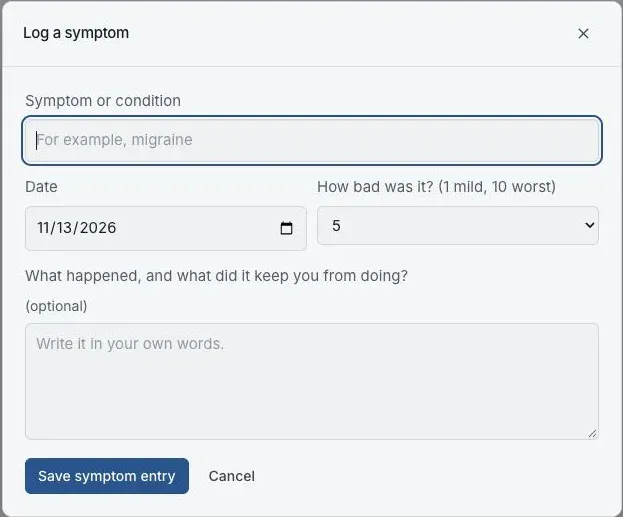
The Timeline form before any symptom entry is saved in the fictional preview.
Open Documents > Timeline and select Log a symptom
Log symptoms on an Action Plan task takes you to Timeline too.
Describe the symptom
Enter the Symptom or condition and check the date. Choose how bad it was that day on the 1 to 10 scale.
Add useful context
In the optional notes, describe what happened and what it kept you from doing. Mark estimates and uncertainty rather than filling in details you cannot recall.
Select Save symptom entry
Wait for a successful result and check the entry in Timeline before leaving the page.
Keep task progress separate
If you opened symptom logging while working on an Action Plan task, check the saved entry and update that task separately. Do not assume that opening the form or saving a note completed the task.
If this does not work
The save shows an error or the entry is missing
- Check the symptom and date fields.
- Keep your unsaved wording while you read the error.
- Check Timeline before trying another save.
Do not treat an open form as a saved entry. Report the page and error with a fictional example if saving remains unavailable.
Useful links
Related articles
Was this helpful?
Still need help? Ask the team