Check document storage and review access
Check saved-document storage and review access before uploading a file or starting an analysis.
Written By Landon
Last updated 1 day ago
Documents shows the space used by saved originals. Review tools have separate access and usage checks, so available storage does not mean every specialist review is included.
Check your storage
The storage card on the Files tab
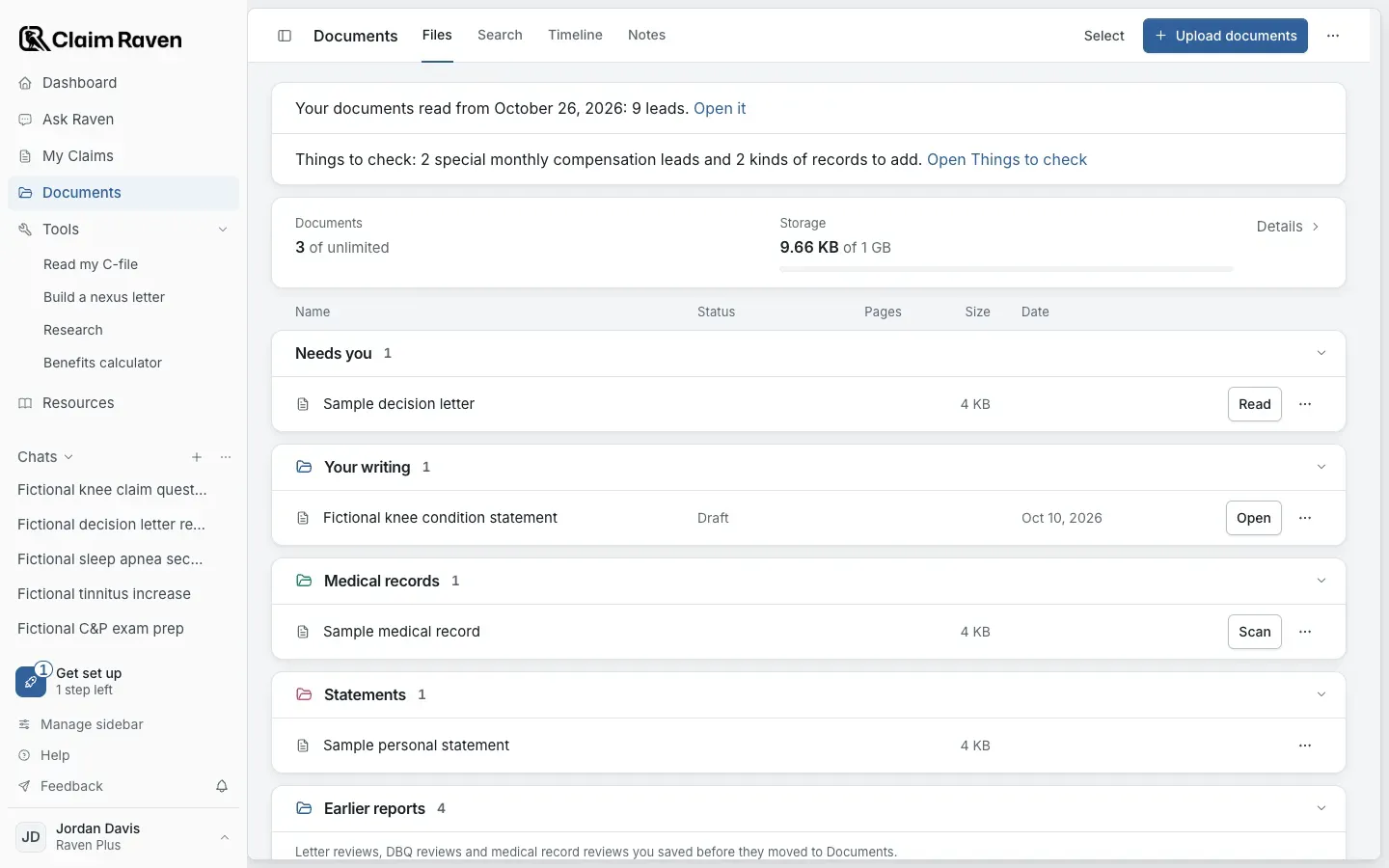
Actual app screen with fictional preview data.
Open Documents
On the Files tab, the storage card sits near the top, under any notices. It shows the documents you have saved and the storage used, each against its configured allowance when there is one.
Open Details on the storage card
Details lists saved and reserved space and what is still available. More document options > Storage opens the same card.
Check before another upload
Check the file limits shown in Upload documents. Reserved space can belong to an upload that has not finished saving.
Recover an interrupted upload
Open a file that says Your file needs attention and use Check upload. Check its result before uploading the same PDF again.
Storage counts originals across your account, including originals saved in claims and chats. Linking a saved original does not use more storage.
If the card says new uploads are paused or upload capacity is unavailable, new uploads cannot start. You can still open and organize saved files. If the page itself is unavailable, follow its access message or ask support about your account.
When your storage allowance is used, your saved files stay available. Remove originals you no longer need, then use Refresh usage in Details after the deletion finishes.
Check the review separately
Read starts the available document reading. Review the consent notice and any allowance shown before selecting it. A specialist review can require a separate choice. Use the current on-screen information rather than a storage figure or an old screenshot to decide what to start. A medical record review starts from Scan and shows its own allowance.
Remove a link or delete an original
Removing a document from a claim keeps the original in Documents. Delete document > Delete original and review removes the stored original, its review and claim links. Keep any copy you need before using that control, and review work that depended on the removed source.
Renaming a file or correcting its type, date and tags does not rewrite the PDF bytes. Use the relevant property control and wait for its saved confirmation. If the app says an original could not be verified, contact support before relying on that file.
Get help with the account state
Describe the page, the action you tried and the message shown. Keep private records, credentials and identifying claim details out of any image you send.
If this does not work
An upload is blocked or an original needs attention
- Check the message on the storage card in Documents.
- Check whether the file is already in the list and whether Check upload is offered.
Do not repeatedly upload an original whose saved state is uncertain. Recover or verify the existing file first, and keep any needed copy before deleting it.
Useful links
Related articles
Was this helpful?
Still need help? Ask the team