Keep and organize your original records
Upload and organize original PDFs, link them to a claim and return to the saved files.
Written By Landon
Last updated 1 day ago
Documents keeps your original PDFs and their saved reviews together. You can name a file, correct its type and date, and link it to a claim you're getting ready.
Open Documents from the sidebar. Its tabs are Files, Search, Timeline and Notes. This article covers the Files tab, where your saved files are listed.
Add and organize a file
The Files tab
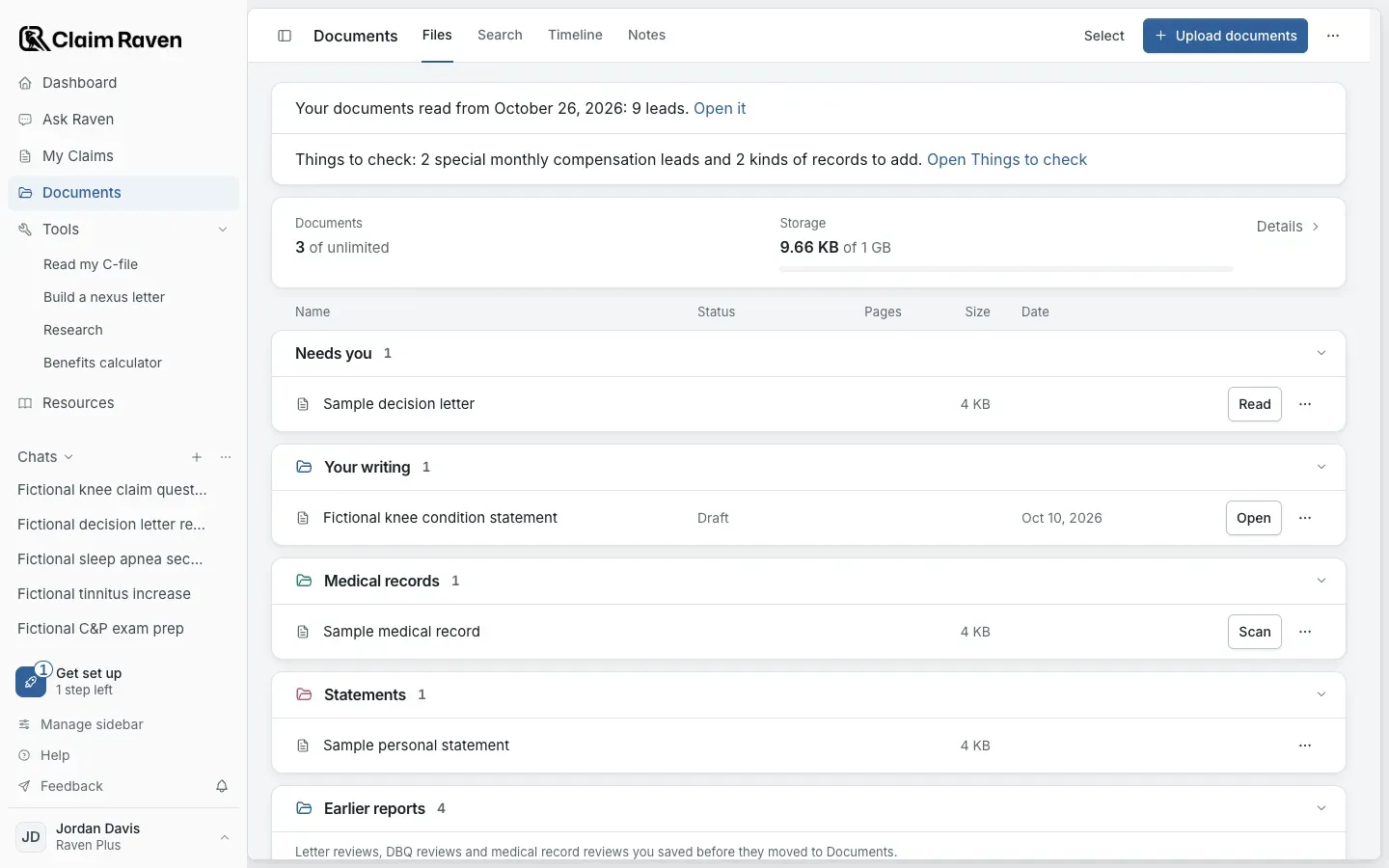
Actual app screen with fictional preview data.
Open Documents and select Upload documents
Select Choose files or drop PDFs in the window. It shows how many files you can add at once and the size limit for each file.
Wait for each file to finish saving
Keep the tab open until the uploads finish. If AI tools are on, Claim Raven then starts reading the saved files. A line under the uploads says when a read limit or a large file means a file was saved without being read.
Expected result: Each finished file shows Saved. Choose Done to go back to Files.
Open a saved document to rename it or change its details
Use More options > Rename for its name. In Properties, choose a new type, or edit the date or tags and use Save date or Save tags. A new type saves as soon as you choose it.
Choose a claim in the Claim section and select Link to claim
The original stays in Documents.
Linking keeps one original in Documents. It does not run a review or make a second stored copy.
A saved document
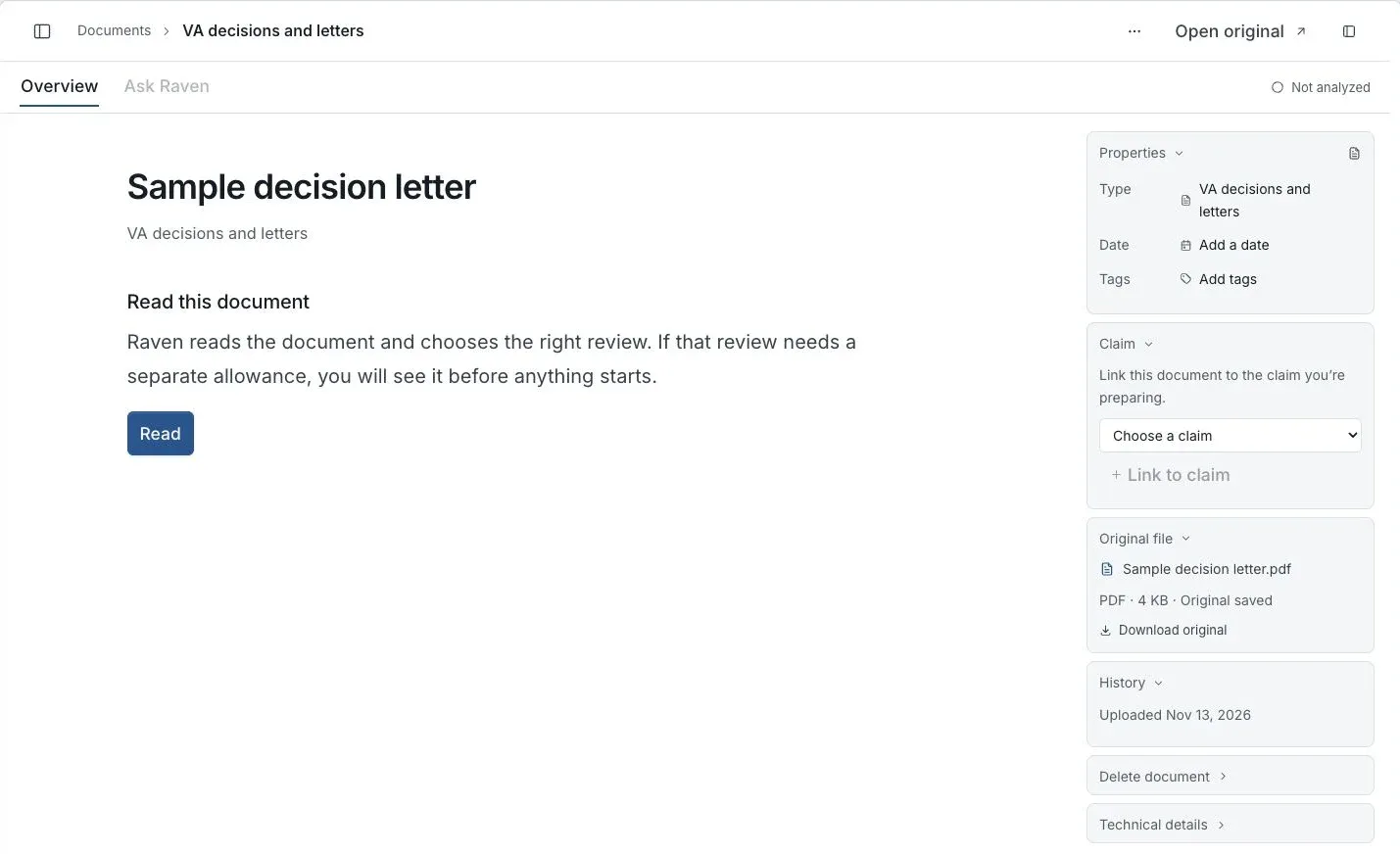
Actual app screen with fictional preview data.
Read or retrieve the original
A letter or DBQ review and a medical record review each show their allowance before they start. To review several medical records at once, choose Select, check the files, then use Actions > Review my medical records. Check the selected files, consent and any allowance or payment shown before you start a review.
Open the document from the list to return to its reader and saved review. Download original retrieves the PDF you uploaded. Check the original when a summary needs context or a date looks wrong.
If a file says Your file needs attention after an interrupted upload, open it and use Check upload. Check the result before trying another upload; the first file may already have reached storage.
Letter, DBQ and medical record reviews you saved on the old tool pages are under Earlier reports at the end of the Files tab.
Remove the right thing
Removing a claim link keeps the original in Documents. Delete document > Delete original and review removes the original, its saved review and its claim links. Your tasks remain, but the removed source is no longer available.
Keep any copy you need before deleting an original. Editing its name or type does not alter the PDF bytes. Finish the property save before leaving; an unfinished edit is not the saved metadata.
If this view is unavailable in your account, use the access message shown there. Availability and review allowances depend on the account and the current rollout.
If this does not work
An upload or saved file needs attention
- Open the file and look for Check upload.
- Check the result before uploading the same PDF again.
If the original is saved, use Download original to check it. A saved original can say Not analyzed until it has been read.
For product help, describe the page, the message shown and what you were trying to do. Keep private records and account details out of screenshots.
Useful links
Related articles
Was this helpful?
Still need help? Ask the team