Keep notes and source comments
Write a note, keep its source context and return to the saved version.
Written By Landon
Last updated 1 day ago
Notes is a tab in Documents. It keeps your questions, observations, saved answers and research passages. A note can stand alone or stay linked to a claim you're getting ready.
Save a note
Find the controls
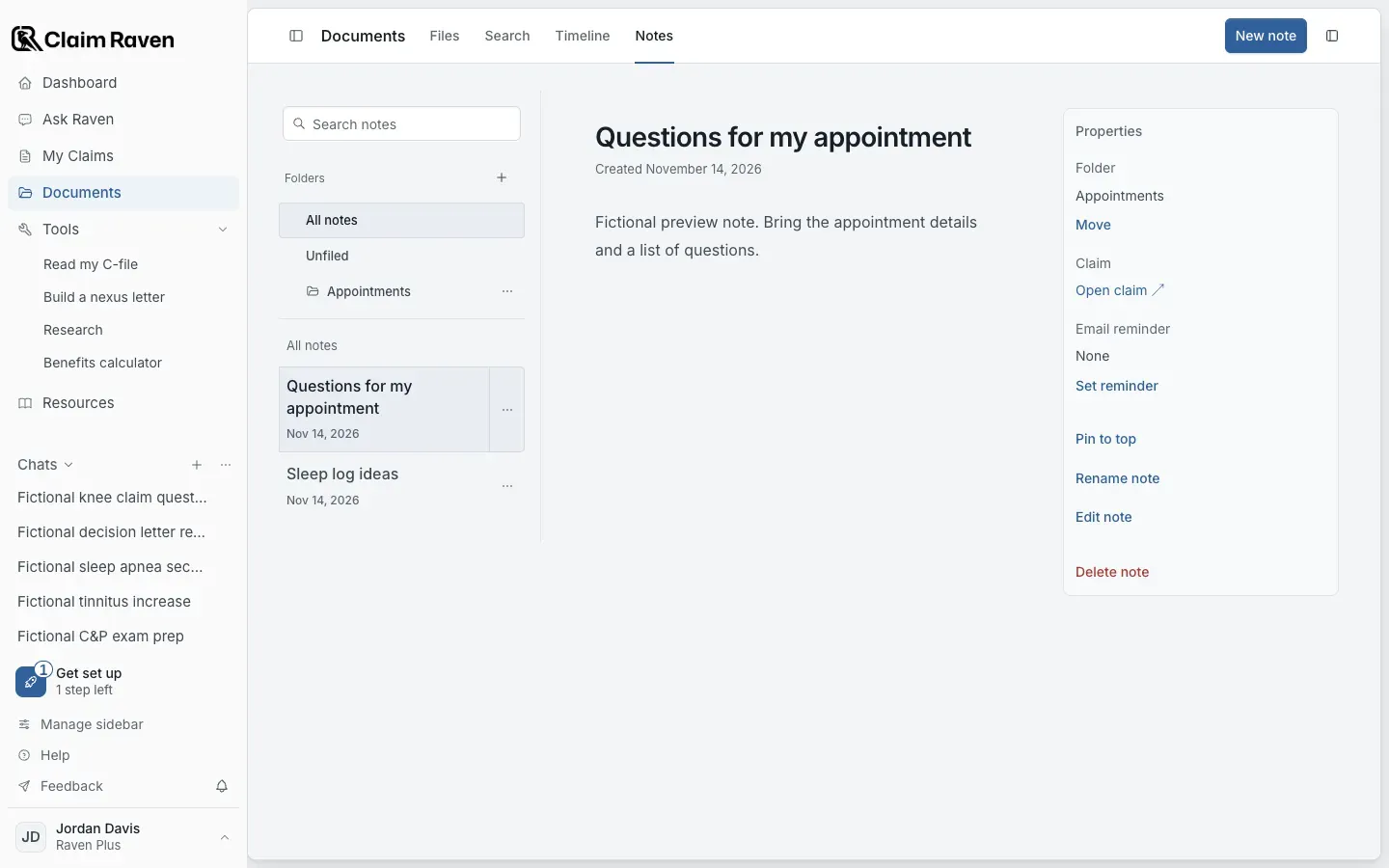
Actual app screen with fictional preview data.
Open Documents > Notes and select New note
If you opened Notes from a claim, check the claim shown. Check the selected folder too.
Write the note
Add a useful title if you want one.
Select Save note
Leave the page open until the save is confirmed. If saving fails, the form keeps your text on the page and offers another try.
Expected result: The saved note opens.
After a reload, go back to your note from the note list.
Move or rename a note
- To move a note, open its menu and choose Move to folder, or drag it into a folder. The menu does the same thing for keyboard and touch use. Moving a note changes its folder and keeps its claim and saved source links.
- Rename note changes its title.
- Properties shows the folder, the claim and any email reminder.
Reopen a saved research source
A research note keeps the selected passage and your comments together. To reopen the saved source, go to Properties > Read saved research source. Source details describes its receipt. Check the original link if you need the wider or newer source.
Saving a passage does not turn it into evidence about you. Keep your comments separate from the quoted source.
Delete a note
Delete note permanently removes that note and its saved research links. To change only its folder or title, use Move to folder or Rename note instead.
Edit note changes the text of a note you wrote. Notes saved from Ask Raven or from research do not offer Edit note.
If this does not work
A note did not appear where expected
- Check All notes, the chosen folder and the claim.
- If the save is still pending or failed, keep the editor open.
Wait for Save note to finish before leaving. If the form reports a failed save, preserve its text and try again from that form; do not assume a reload saved it.
For product help, describe the page, the message shown and what you were trying to do. Keep private records and account details out of screenshots.
Useful links
Related articles
Was this helpful?
Still need help? Ask the team