Ask Raven with the right records and context
Choose the right claim and records for your question, check the answer and return to the saved conversation.
Written By Landon
Last updated 1 day ago
Ask about the right records
Ask a focused question
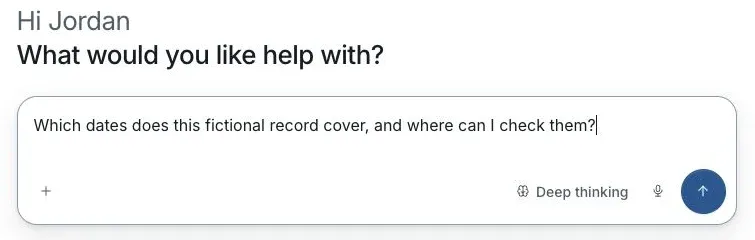
Actual Ask Raven screen with fictional preview data.
Open Ask Raven and choose the claim
Choose the claim and conversation group where those controls are shown, or start from Ask Raven inside the claim. Check the claim name before asking about its records. A general question and a question about a claim you're getting ready may not use the same records.
Wait for attachments
You can add up to five files to a message, each up to 50 MB. Wait until attached files are readable before you send. Starting a different conversation does not move a file already accepted into the first one.
Ask one plain question
For example, ask which dates the selected records cover and which passage supports the answer.
Check where the answer came from
Open the answer's citations and source details. Tell official reference material apart from your own records. For records in a claim, check the coverage and whether the answer used a summary or a record excerpt.
- A file can be linked to a claim before its full contents have been read.
- A record-level receipt without a page location is not a page citation.
- Some saved references hold only excerpts or summaries. Check the coverage shown and open the original for more or for surrounding context.
- A citation is a way to check an answer, not a reason to skip that check.
Save and reopen a conversation
Select the chat under Chats in the sidebar
Conversation groups only organize chats. The claim you choose sets which records are used; check both before another question.
Save a document chat
Where a document chat offers Save conversation, select it and wait for confirmation.
Save a useful answer to Notes
Use the answer's note-saving control, then open the saved note to check its content and links.
- A half-typed message stays with its chat in this browser. It is still there when you come back from another chat or page, or after a reload. A new chat keeps its own.
- That text is cleared when you send it, when you sign out, and after 7 days. It is not saved to your account, so another browser or device does not show it.
- Starting or reopening a saved conversation does not mean its earlier answers used every newer record.
See when an answer is ready
You can leave a chat while Raven is still answering. A small mark at the right of the chat's row in the sidebar Chats list shows where it stands. Point at the row to read what the mark means.
- An empty ring means Writing an answer. Raven is still answering a question you sent from this browser tab.
- A filled dot means Answer ready. The answer arrived while you were somewhere else. Opening the chat clears the mark.
- After a reload, no mark shows for a question that was still being answered. A question sent from another device does not mark a row here.
Pin, archive or delete a chat
Open the chat's menu in the Chats list
Point at the chat's row and select the three dots at its right. On a phone the dots always show.
Select Pin to top, Archive or Delete
The change happens at once.
Expected result: A notice such as Chat archived shows with an Undo button for five seconds.
Select Undo to put it back
Command Z on a Mac, or Control Z on Windows, does the same while the notice shows, unless you are typing in a field. The chat returns to its place in the list.
- A deleted chat is removed for good when the five seconds end. Leaving the page or switching to another browser tab ends the wait early.
- To bring back an archived chat later, select Chat options (the three dots beside Chats) > Archived chats, then Restore.
If this does not work
The answer uses the wrong scope or a file is not ready
- Check the claim and conversation before sending.
- Read the attachment’s status and the answer’s coverage details.
Wait for readable attachments or follow their recovery notice. Starting a new chat does not move files already accepted by another conversation.
Useful links
Related articles
Was this helpful?
Still need help? Ask the team