Use the Evidence Dashboard without mistaking workflow for proof
Read the Evidence Dashboard, review your tasks and separate app progress from official VA evidence status.
Written By Landon
Last updated 1 day ago
Read workflow progress and saved tasks
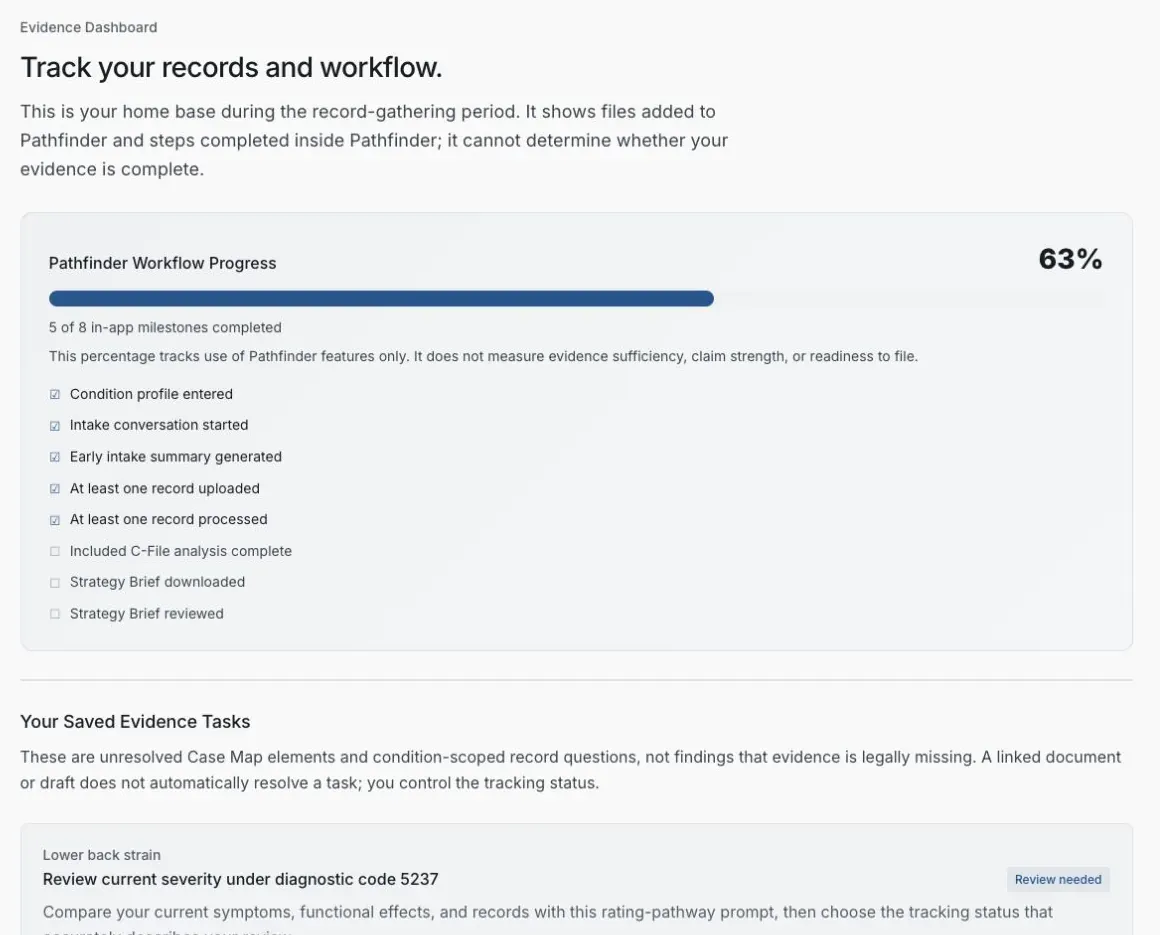
Pathfinder development preview with fictional records.
The Evidence Dashboard is a Pathfinder page for reviewing available record information, organizing tasks you control, and seeing which in-app steps may need attention. It cannot determine that your evidence is complete, that VA received a document, or that an issue is legally supported.
Workflow status is not proof
A processed record, linked task, completed milestone, or compiled-for-now checkpoint describes work inside Claim Raven. It is not proof of legal sufficiency, VA receipt, claim strength, filing readiness, or a likely outcome.
Read each dashboard area for its actual job
Evidence Dashboard areas and their limits
A safe dashboard review sequence
Review record coverage
Check each visible record's processing state and any limits. Keep originals and submission receipts outside the dashboard as the controlling proof of what you have and what you sent.
Expected result: The dashboard inventory is compared with your own source archive rather than treated as complete.
Open one task at a time
Read the exact question, source, condition, and requested action. Change, reject, or dispute the task when it does not accurately reflect your situation.
Expected result: Only accurate, useful tasks remain active.
Control the task state yourself
Mark work complete only when you have actually done the task you intended. A linked document or statement can support your organization without proving the underlying question.
Expected result: Task status reflects your work, not an automated legal conclusion.
Confirm the selected decision letter
Before relying on Gap Analysis, verify which decision letter is selected. Analysis tied to one letter should not be generalized to every record or every claim issue.
Expected result: The analysis stays attached to the source that defines its scope.
Refresh stale analysis before later review
If Pathfinder marks analysis as stale after relevant changes to your Pathfinder records, use the offered refresh before relying on it in a current Strategy Brief. Preserve a failed or partial refresh as a visible limit.
Expected result: Later work does not silently rely on an outdated analysis.
Use compile for now as a checkpoint
Move forward when that is useful while keeping unresolved and partial items visible. Return and revise the dashboard when new information arrives.
Expected result: Moving forward does not turn an unfinished inventory into a final evidence package.
VA instructions and receipts remain separate
Use the current VA notice and official instructions for what to submit, where to submit it, and any stated date. Preserve the exact submitted files and official confirmation. A Pathfinder status does not replace those records.
If this does not work
A record is missing or has not finished processing
- Compare the dashboard with your original record archive
- Read the displayed processing or failure state
- Use an offered retry only when appropriate
- Do not mark the evidence question resolved solely because a file is listed
Keep the missing or unfinished source visible as a limitation. Continue only with the information you can verify.
Gap Analysis is marked stale or does not match the selected letter
- Confirm the decision letter selected in Pathfinder
- Check whether relevant information in Pathfinder changed
- Use the available refresh action
- Preserve any failure or partial state
Do not carry the stale analysis into a current brief as if it were current. Refresh it or keep the limitation explicit.
A task does not apply or states the question incorrectly
- Compare the task with its identified source
- Edit, reject, or dispute it when that control is available
- Keep your reason factual and bounded
- Do not create evidence just to satisfy a software prompt
Leave only tasks that accurately describe work you choose to do.
For a dashboard defect, contact support with a synthetic description of the status, screen area, and expected behavior. Do not attach private records or identifying claim information.
Official sources
Return to your saved Evidence step
Review the available records, task ownership, selected decision letter, and any stale or partial state. Returning resumes saved work and does not guarantee an exact screen.
Related articles
Was this helpful?
Still need help? Ask the team