Can I switch from monthly to annual mid-subscription?
Preview a change to your billing period and review its cost before you confirm.
Written By Landon
Last updated 1 day ago
Yes, when the current subscription is eligible for a plan change. The Pricing page can preview the amount due today for another tier or billing period. No change occurs until you review and confirm it.
Important: The displayed preview controls
Read the amount due today, unused-time credit treatment, new billing period, and future renewal before confirming. Do not rely on a general promise that every change is free, immediate, or available for every subscription.
Find your subscription controls
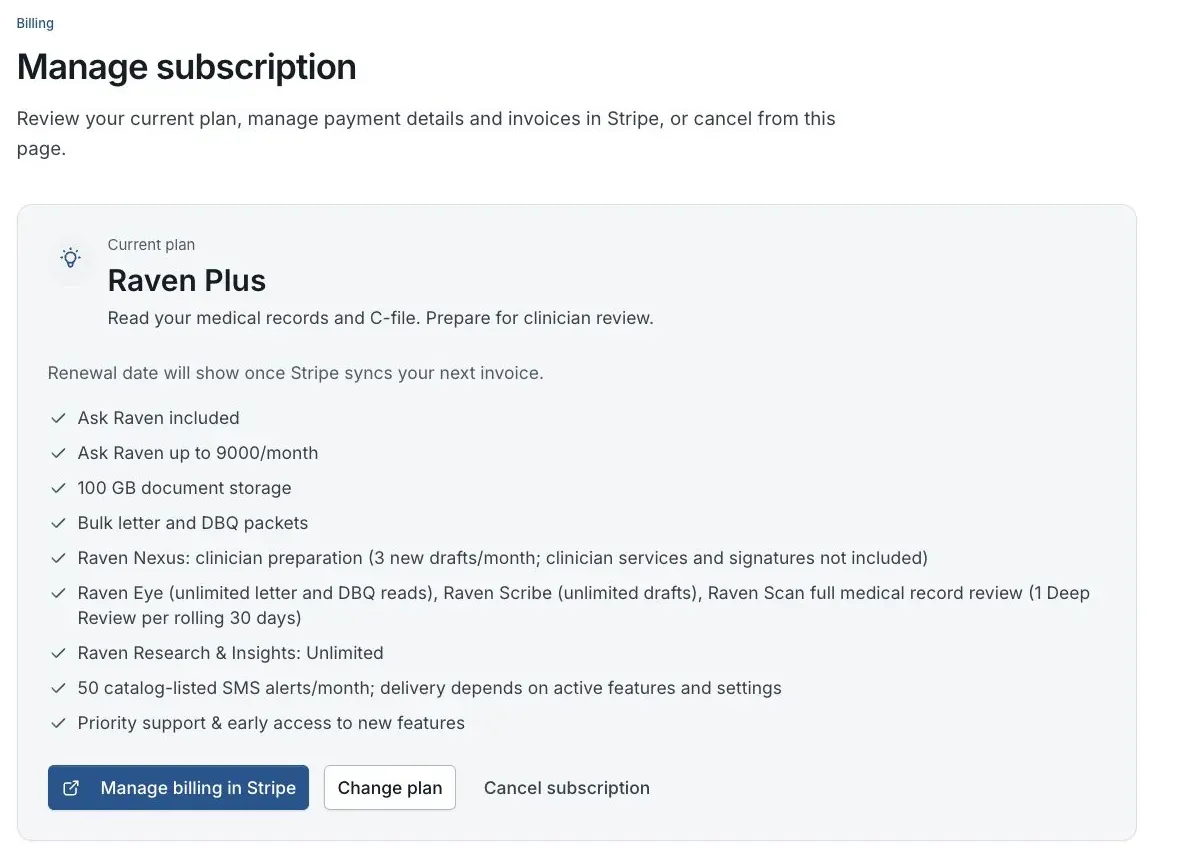
Billing preview for fictional member Jordan Davis. No real subscription is shown.
Review and change your billing period
Open Pricing while signed in
Select the intended tier and monthly, quarterly, or annual period. Founding, legacy, discounted, paused, or provider-restricted subscriptions may have different options.
Expected result: The product determines whether the current subscription is eligible.
Read the plan-change preview
Review the exact amount due today. An upgrade or cadence change may create a prorated charge; a change with unused-time value may show no charge today and carry a credit to future invoices.
Expected result: The current cash effect is visible before authorization.
Confirm the future billing terms
Check the new plan, cadence, renewal amount, date, and any discount behavior.
Expected result: You understand both today's effect and the next renewal.
Authorize or cancel
Confirm only if every displayed term is expected. Cancel the dialog to leave the subscription unchanged.
Expected result: A subscription change is an explicit choice.
Verify Billing and save the invoice
Confirm the new plan in Billing and retain Stripe's invoice or receipt outside Claim Raven.
Expected result: The account and payment record agree.
If this does not work
No change option appears
- Confirm you are signed in to the account that owns the subscription
- Review the current tier and subscription state in Billing
- Check whether the plan is Founding or legacy
- Do not start a separate subscription to work around the missing option
Leave the current subscription unchanged and contact support for an eligibility review.
The preview shows an unexpected charge or discount conflict
- Confirm the tier and billing period
- Review the amount due today
- Check for an existing promotion or discount
- Cancel before authorization
Do not confirm. Contact support with the non-sensitive preview details.
Email help@claimraven.com with the current plan, intended plan and billing period, and the displayed amount. Never send full card details.
Review your subscription
Open Billing to confirm the current plan and invoices. Use Pricing only when you are ready to preview a change.
Related articles
Was this helpful?
Still need help? Ask the team