Write and return to a saved personal statement
Write a personal statement in Ask Raven, check the draft and return to it from Saved writing.
Written By Landon
Last updated 1 day ago
The Write a statement task in Ask Raven turns the facts you give into an editable statement draft. On a condition's page, Draft your personal statement opens the same task. The statement tool was formerly called Raven Scribe.
Write a statement in Ask Raven
Start a statement in Ask Raven
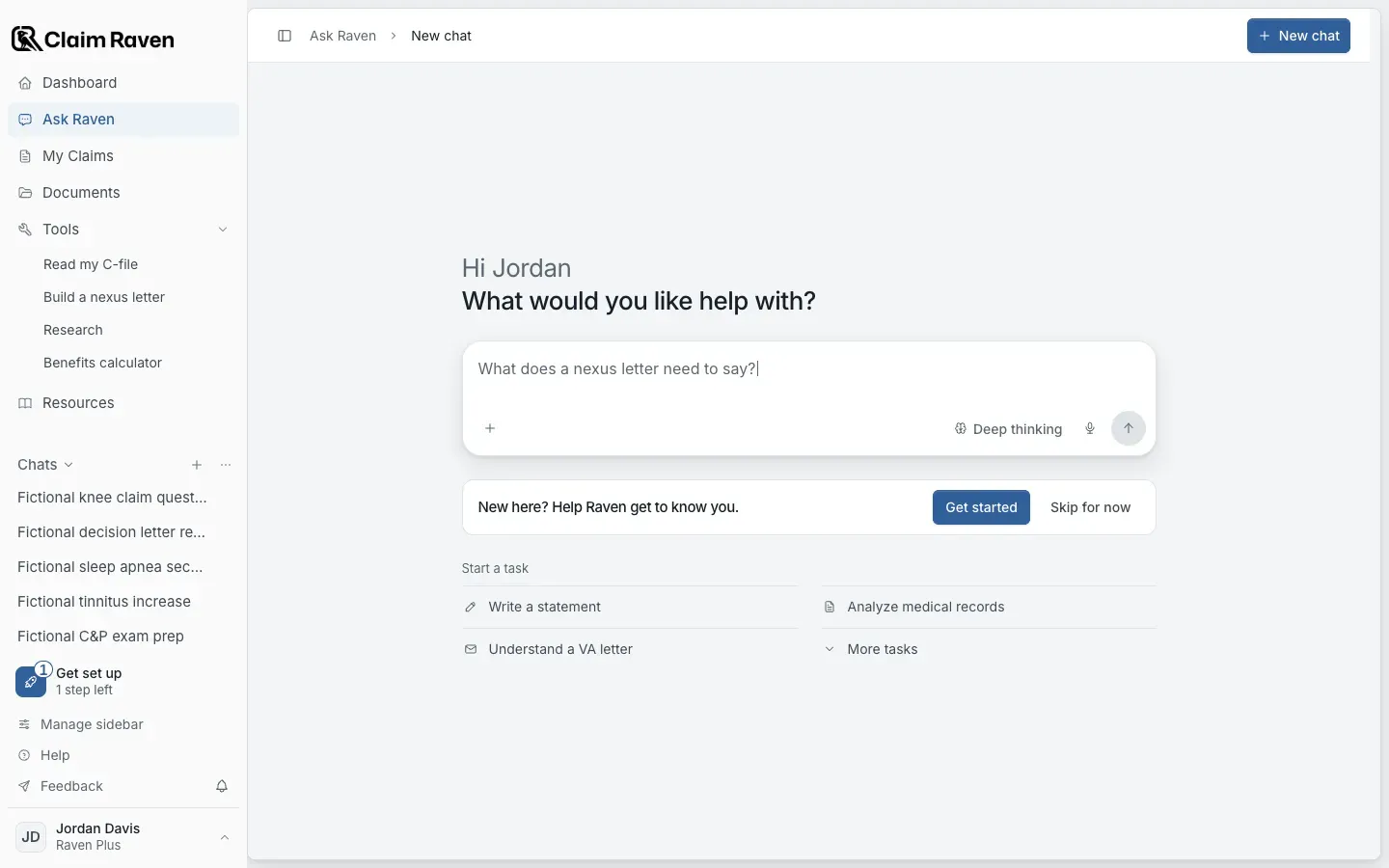
Actual app screen with fictional preview data.
Open Ask Raven and select Write a statement
It is under Start a task in a new chat.
Choose the condition and select Start statement
Pick it under Which condition is this statement about?
Answer Raven's questions
Raven walks through your experience. Your answers stay in this chat.
Expected result: Your finished draft is saved to Documents automatically, under Your writing.
Return to a saved draft
Saved writing in Ask Raven
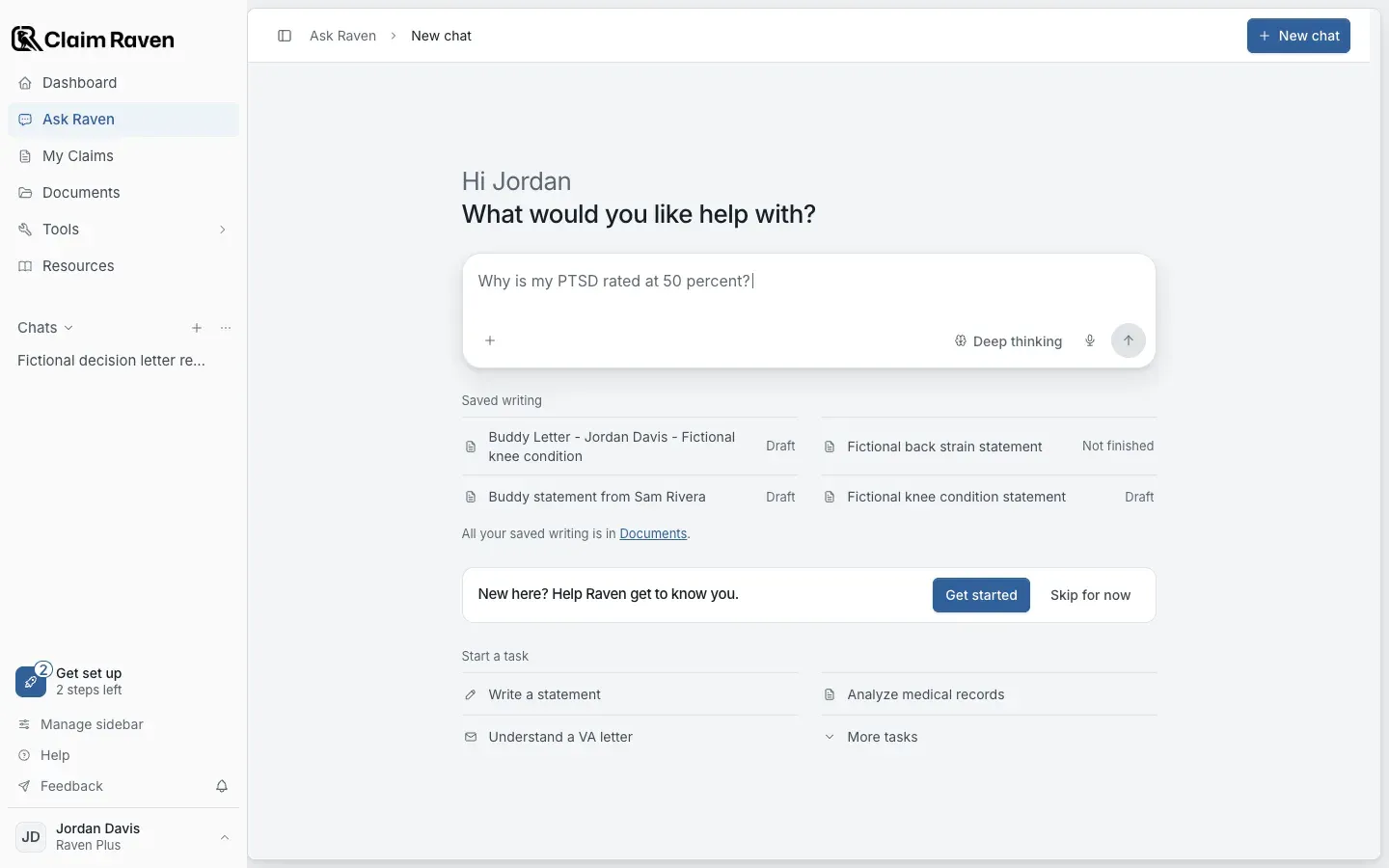
Actual app screen with fictional preview data.
Saved writing on the Ask Raven start screen shows your four newest drafts that are not already under Continue your work. Select a draft to open it. The full list is in Documents.
Your writing in Documents
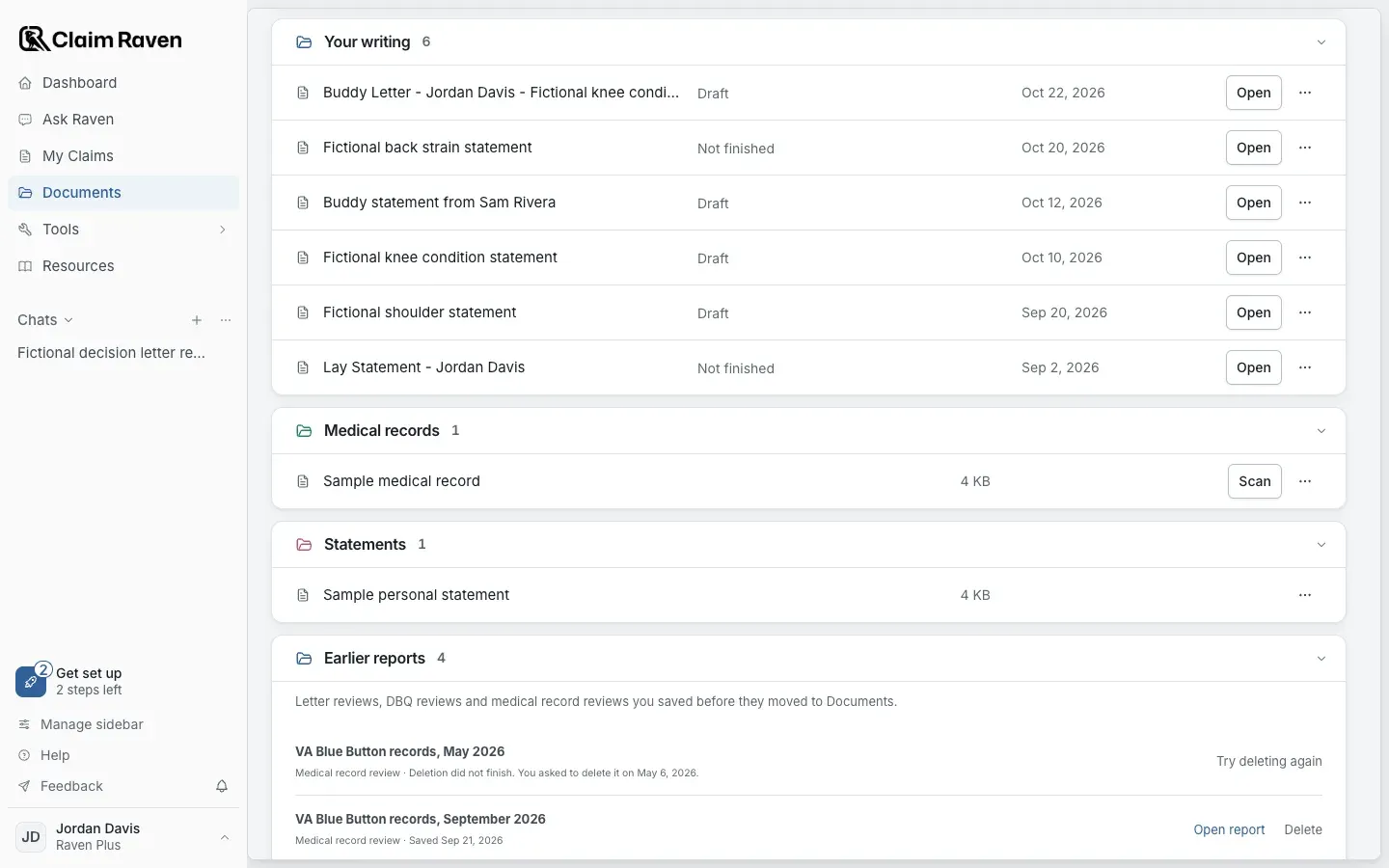
Actual app screen with fictional preview data.
Open Documents and stay on the Files tab
Your writing lists your statement drafts and the buddy and lay statements you saved. Each row says Draft or Not finished, with the date it was last changed.
Select Open on the draft
Where it opens depends on the kind of draft, as listed below.
- A Not finished statement opens in an Ask Raven chat at the question where you stopped. If a chat already holds that draft, that chat opens.
- A finished draft opens in Documents, where you can edit it. Continue in Ask Raven, next to Export, takes it back into a chat.
- Buddy and lay statements you started in the buddy statement builder open in the builder.
- To delete a draft, open the menu at the end of its row and select Delete. Deleting cannot be undone.
Write a statement for a claim or an Action Plan task
A statement you start from a claim, from an Action Plan statement task or from a claim preparation item opens in Ask Raven, in a Write a statement form that already knows the claim. The task's condition and claim come with it, and a preparation item adds the names of its linked records to your answer about other records.
Check the condition and claim
Under Which condition is this statement about?, choose the condition, then choose its Statement questions. A statement you already started for this condition on this claim opens with its answers.
Select Start statement
Raven walks through your experience one question at a time. To keep the statement off the claim, select Write it without linking it to this claim instead.
Review and save to your claim
Read the draft and open Check each sentence to compare it with your answers. Correct anything you did not mean, then select Save to your claim to put it in Documents and on the claim.
Return to Action Plan
A statement started from an Action Plan task is linked to that task when it opens. If Raven says the statement could not be linked, reopen the same draft from Saved writing rather than starting another one.
Begin with your facts
Open the task's statement action or use Write a statement in Ask Raven. Check the intended condition and claim before continuing. Check the access and usage information for the kind of draft you choose.
Describe what happened, when it happened and how it affected you. Keep approximate dates approximate. If important facts are missing, answer the tool's questions or keep the gap visible rather than adding something you do not know.
Linked record names and task notes can provide a starting point. They do not establish that the full contents of every linked original were included. Check the source selection and grounding shown in your draft workflow.
Review and save
Read the whole draft. Correct dates, names, attribution and any sentence that goes beyond what you meant. Use the draft's save controls and wait for confirmation before leaving. Keep editing separate from generating another AI draft.
Reopen the saved statement from Saved writing in Ask Raven or Your writing in Documents. Check that the latest text is present. Unsent commands and unconfirmed edits are not a confirmed saved version.
Return from Action Plan
For a supported statement task, the confirmed saved draft can attach to the same task. Return to Action Plan and open its saved output to resume it.
If Ask Raven says your statement is saved but could not be linked to your Action Plan task, open the existing draft from Saved writing. Do not create another draft just to recover that saved work. Linking and return behavior should be checked before you leave the task.
Saving, downloading or editing a draft does not complete the task or submit the statement. Update task progress only when it reflects the work you intended to do.
If this does not work
The draft or export does not match what you wrote
- Compare the result with your original answers.
- Check the selected statement type and writer’s role.
- Correct unsupported text before sharing or signing.
Keep the accurate original. For a product error, tell support the page and visible problem using a fictional example.
Useful links
Related articles
Was this helpful?
Still need help? Ask the team