Use Inbox and task reminders
Open a saved-result notice in Inbox and set task reminders separately from due dates.
Written By Landon
Last updated 1 day ago
Inbox brings together saved-result notices and task reminders. Opening a notice takes you to the work it refers to; it does not confirm that you have checked the result.
No updates here yet means the current view has no notices. Check All, Archived and Unread only before assuming a notice is missing.
Open Inbox
Inbox is no longer a row in the sidebar. Select the bell at the end of the row of icons at the bottom of the sidebar, just above your name. On a phone, the bell sits in the top bar of each page.
The bell shows how many updates are unread. Opening Inbox clears that number from the bell. The updates themselves stay unread in Inbox until you open them, and the number comes back when something new arrives.
Find the controls
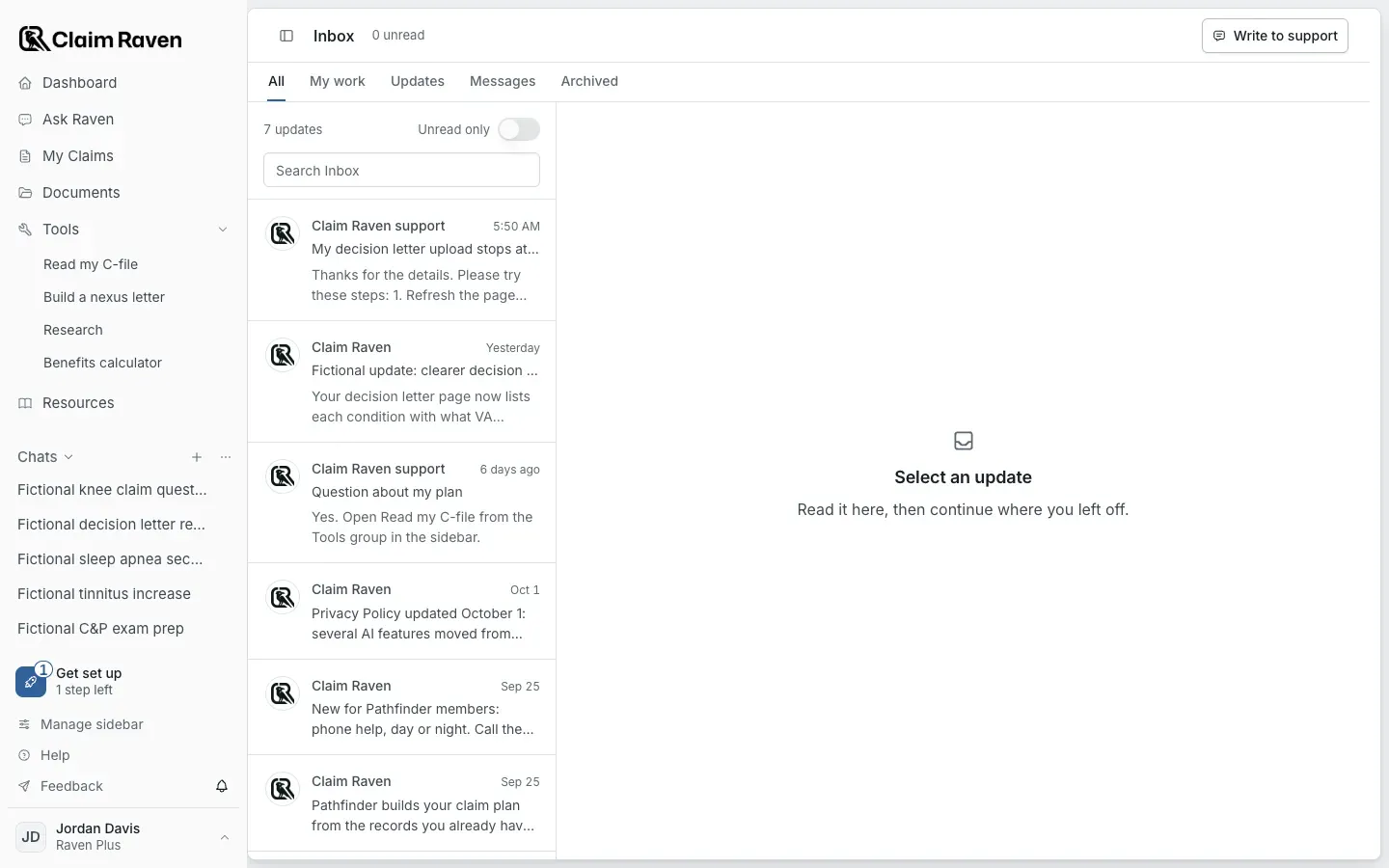
The Inbox on the All filter with fictional updates and support replies; no notice or message is being sent.
Open a saved result
Open Inbox and choose a notice. Follow its link to the saved analysis or task. If a notice describes an earlier failure, check whether the document now has a successful result.
Marking a notice read or archiving it does not delete the original or analysis. If its source was deleted, use the notice's current availability message rather than expecting the old file to open.
Set a task reminder
Open an Action Plan task and select Notify me
Action Plan opens from the Dashboard: What to do next > Action plan > View all. Notify me is off for suggestions and for completed or dismissed tasks.
Under Where, choose In app · Inbox, Email or both
For email, email alerts must be on in Account settings.
Enter the Notification date, Time and time zone
Use Repeat to choose Once, Daily or Weekly.
Select Save task
Open the task again to check the saved schedule.
A task's due date and follow-up date are separate from its reminder. Entering either date does not turn notifications on. Delivery by email also depends on your account email-alert preference.
Pause or change reminders
Task reminder settings moved from Action Plan to Account settings. Open the account menu at the bottom of the sidebar and select Account settings > Notifications. Beside Action Plan reminders, select Notifications.
To pause all task reminders, clear Action Plan notifications on. You can also change the default delivery, time and time zone. Select Save settings. Defaults apply when you create new reminders. Existing schedules keep their own settings.
Completing or dismissing a task turns its reminder off. Reopening the task does not turn the reminder back on. After a pause, missed occurrences are skipped rather than sent as a backlog.
Inbox reminders link to the saved task. Read the task itself for its notes and condition. This reminder workflow does not offer SMS or browser push.
If this view is unavailable in your account, use the access message shown there. Availability and review allowances depend on the account and the current rollout.
If this does not work
A notice or reminder is missing
- Check All, Archived and Unread only in Inbox.
- Open the task and check Notify me; a due date alone does not schedule a reminder.
- In Account settings > Notifications, check whether Action Plan reminders are paused and whether email alerts are on.
Review the saved schedule and available channels. Reopening a completed task does not automatically reactivate its reminder.
For product help, describe the page, the message shown and what you were trying to do. Keep private records and account details out of screenshots.
Useful links
Related articles
Was this helpful?
Still need help? Ask the team