Deadline Reminders and ITF Tracking
Keep confirmed dates and reminders separate from the notice that establishes your deadline.
Written By Landon
Last updated 1 day ago
The deadline calendar organizes dates the user enters or confirms. It does not recalculate a notice deadline, select a review lane, extend time, or prove that an action was filed.
A dashboard tool does not make the VA decision
Calculators, associations, notes, estimates, and reminders are educational or organizational. They do not establish eligibility, rating, payment, causation, deadline, filing, receipt, status, or outcome.
Follow these steps
Find the controls
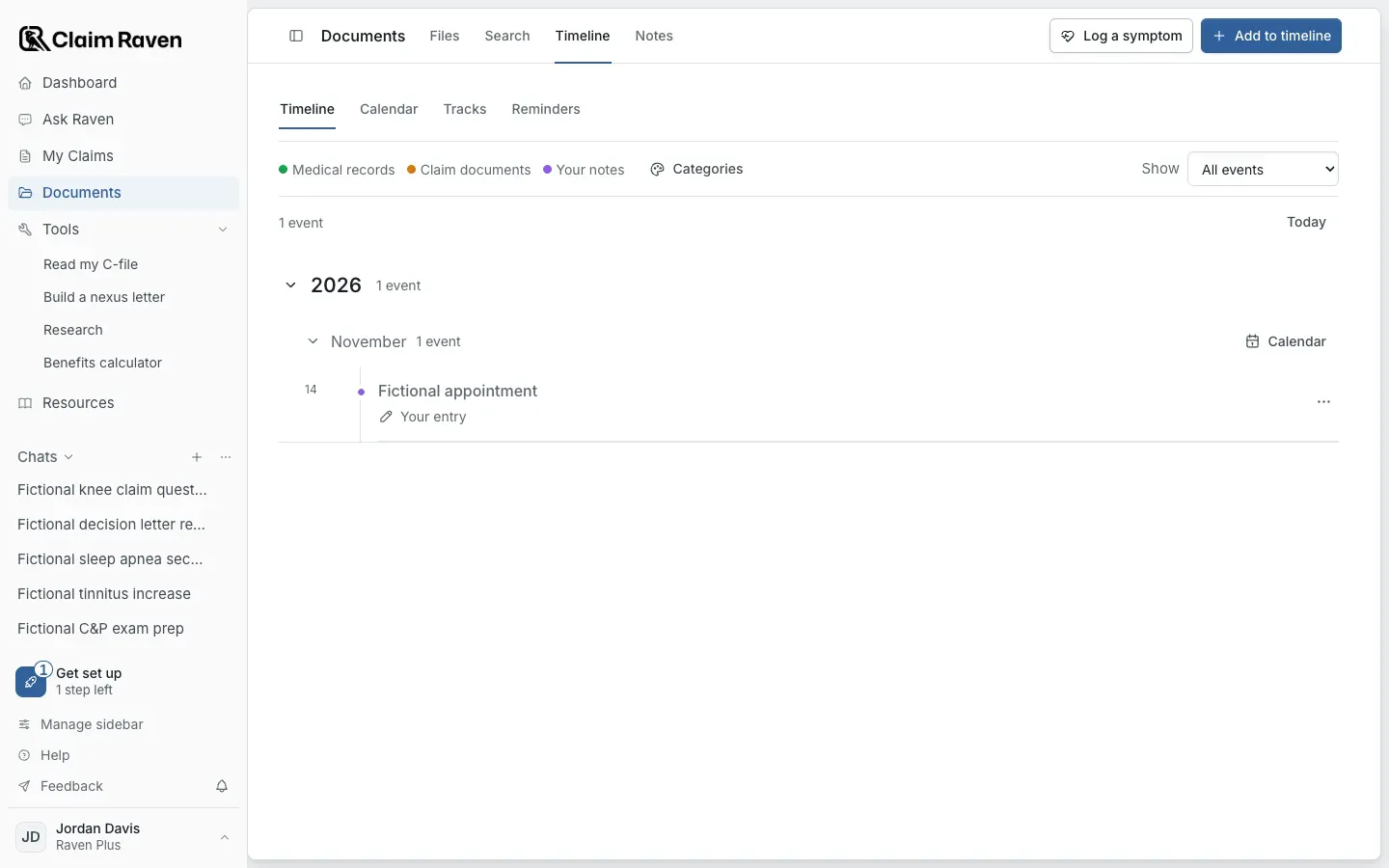
Actual app screen with fictional preview data.
Check the original notice
Find the actual date and action in the complete notice. Do not use a reminder to calculate or extend time.
Record the date deliberately
Open Documents > Timeline and select Add to timeline, or open Reminders and select Add reminder. Check which task or event it describes.
Review the reminder
Check its time, time zone and delivery choice. A due date and a notification are separate settings. The Calendar view shows your saved dates by month.
Keep proof elsewhere
Preserve the notice and any submission receipt. Marking a calendar event does not show that you filed anything.
If this does not work
A reminder date differs from your notice
- Read the complete notice again.
- Check the saved date and time zone.
Correct the reminder to match the verified date. Get qualified help if the notice or deadline itself is unclear.
Check the current screen
Review your inputs, the source and the displayed limitations.
Useful links
Related articles
Was this helpful?
Still need help? Ask the team