Keep dates connected to their records
Read dates in Timeline, check their source and tell your own entries apart from dates in your records.
Written By Landon
Last updated 1 day ago
Timeline is a tab in Documents. It shows your events in order. An event that came from a saved document keeps a link to that original.
Add your own date
Find the controls
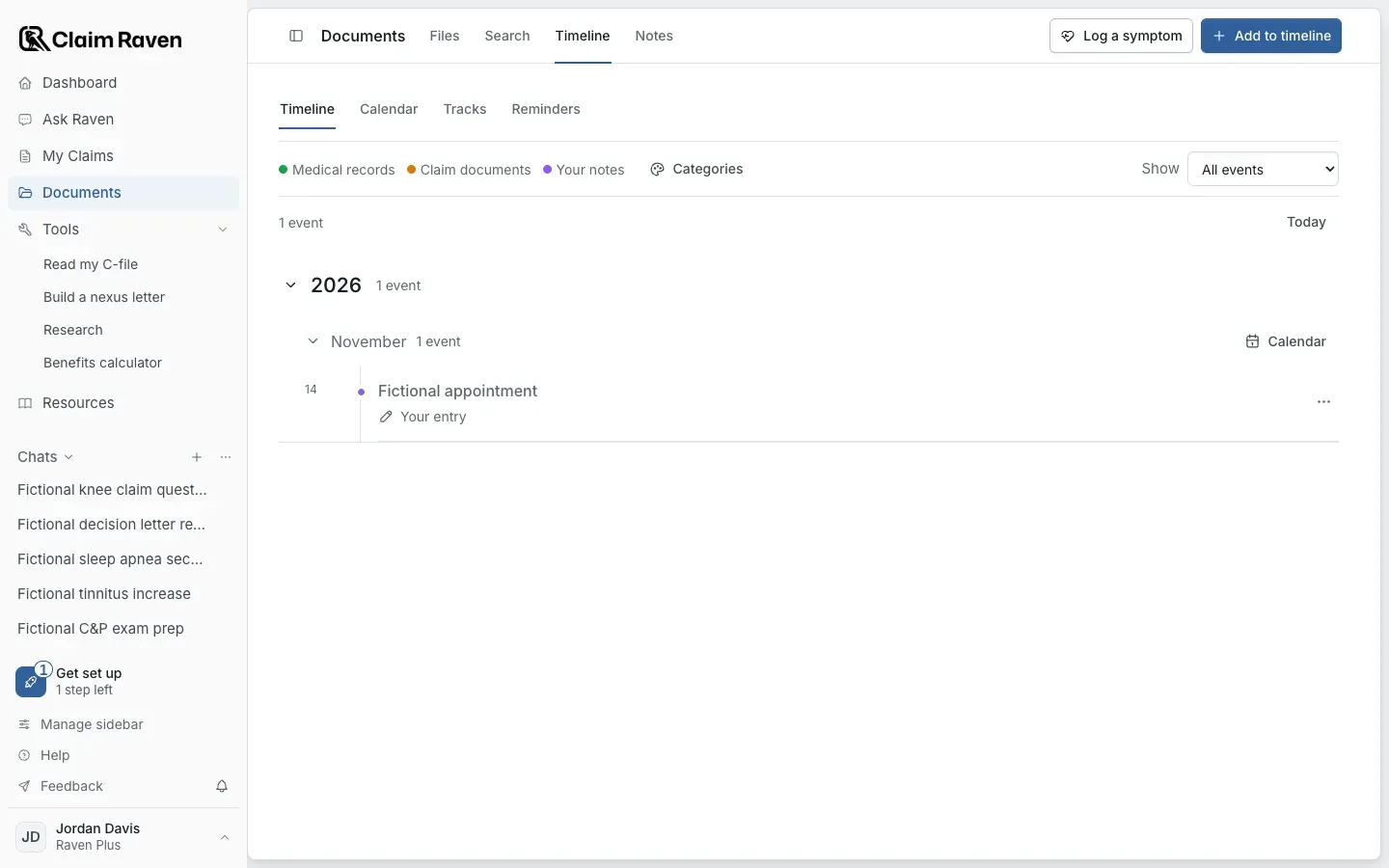
Documents on the Timeline tab with one fictional appointment; this image does not show a completed symptom save.
Open Documents > Timeline and select Add to timeline > Personal event
Use it for a date you are recording yourself. A personal event is your own entry.
Fill in the event
Enter Event title, Date, Category and any useful details in Your notes. Check copied dates against the actual record. Make the title specific enough to tell an appointment from a document being created or received.
Select Add event
Wait for the result, then select the event to check the saved date and wording.
Check a date against its record
Select the event in Timeline to open Event details. For an event that came from a document, select View original document and check the date and its context in the record itself.
Correct a date
Select the event, then select Edit
The form shows the event title, Event date, Category and your note.
Change Event date and select Save changes
For an event from a document, this changes only the timeline entry. The original document and its dates stay the same.
Expected result: Event details says you edited the date and shows the earlier date.
Sort and ask about events
- Categories help organize the history. Removing a custom category keeps its events, which return to their default categories.
- Ask about this in Event details opens Ask Raven with the selected event and the context available for it. It does not mean the complete original has been supplied.
- Deleting an original in Documents can remove its linked date and correction. Keep the original while you still need that connection.
If this does not work
A date from a record is missing or Timeline does not load
- Make sure the original is saved in Documents.
- Check the Show filter in Timeline, or search the events.
If Timeline could not load, select Try again. If a date is still missing, add it yourself with Add to timeline > Personal event.
For product help, describe the page, the message shown and what you were trying to do. Keep private records and account details out of screenshots.
Useful links
Related articles
Was this helpful?
Still need help? Ask the team