Work through your Action Plan
Save a preparation task, check its sources and keep its progress and reminders up to date.
Written By Landon
Last updated 1 day ago
Action Plan keeps your preparation tasks and their sources together. You can add your own task or review suggestions from a saved result.
Open Action Plan
Action Plan opens from the Dashboard. Under What to do next, select View all beside Action plan. The Dashboard also lists your first open steps there. While you are on Action Plan, the sidebar highlights Dashboard.
Open Action Plan from the Dashboard
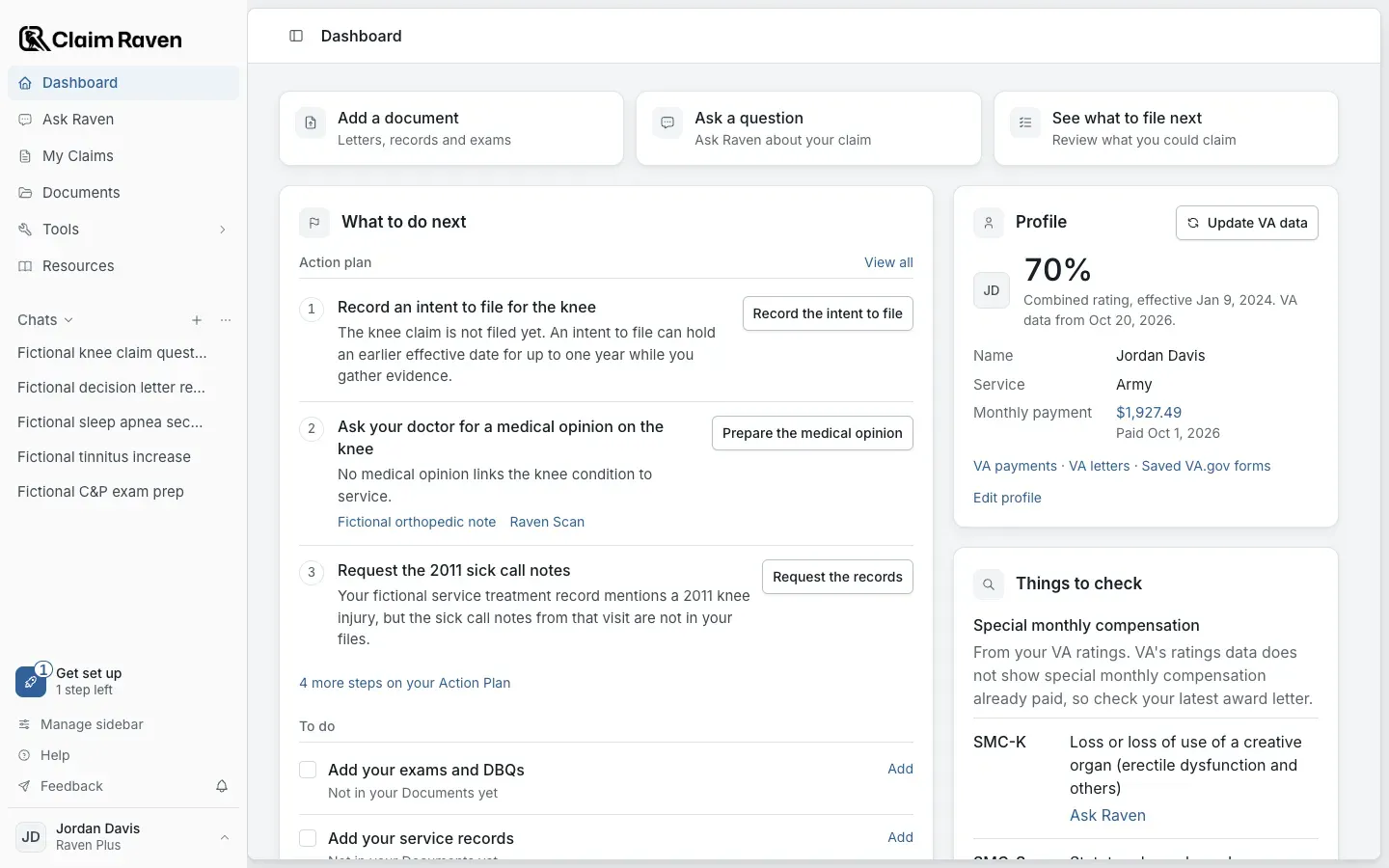
Actual app screen with fictional preview data.
To keep a link in your sidebar, open Manage sidebar and select the eye beside Action Plan under More you can add.
Choose and save a task
Find the controls
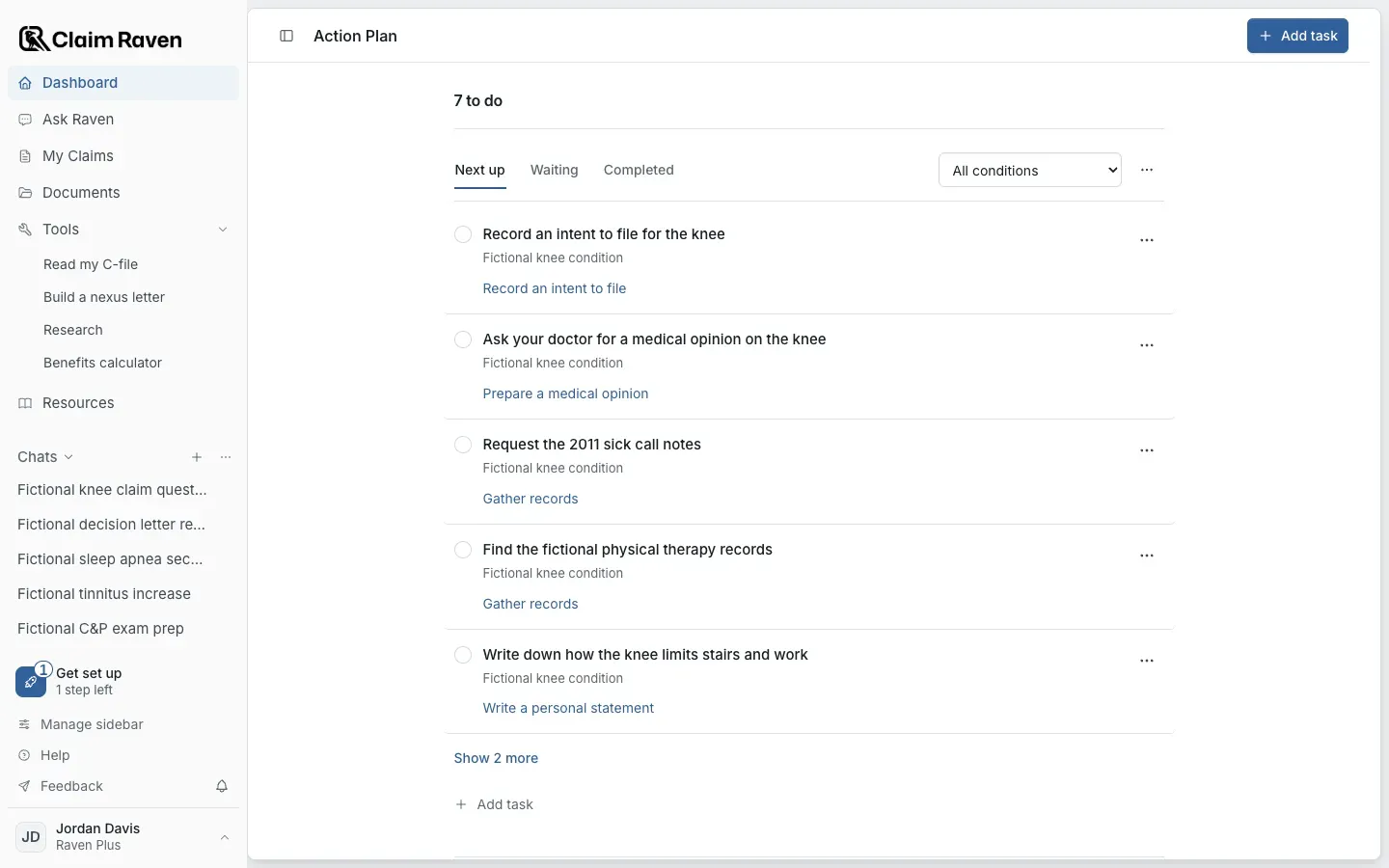
Actual app screen with fictional preview data.
Check Next up or Waiting for saved tasks
Expand the suggestions section below the task list to review proposed work.
Open a suggestion and check its source before accepting it
Select Add to plan to keep it. If it does not fit your situation, select Dismiss, or Not for me in the suggestions section.
Expected result: The change happens at once, and a notice offers Undo for five seconds.
Select Add task to create your own next step
A condition and claim are optional.
Add notes, linked originals and any due or follow-up date you choose
Select Save task before you leave.
Use a concrete task such as finding treatment records for a named period. A suggestion's date is not a confirmed deadline; check the original notice before entering a due date.
Work in a tool and return
Open the task's tool action and check its condition and claim. Supported tools can attach a confirmed saved result to the task. Use Back to Action Plan, then open the task's saved output to continue that same work.
A saved symptom entry, exam prep, statement draft, buddy request or nexus letter draft does not complete the task. Set the task's progress when it reflects what you have done. If the tool reports that saving worked but linking failed, use its link recovery or reopen the saved result instead of creating another copy.
Read progress correctly
The progress count describes accepted tasks in the current scope. Waiting tasks are unfinished; suggestions and dismissed tasks do not count as completed work. It is not a rating prediction or a filing-readiness score.
A condition's Preparation and a claim's Plan show the same tasks in context. Check filters if a task seems missing. If another window saved a newer edit, follow the conflict notice and preserve your text before reloading.
Complete, archive or reopen a task
Select the circle beside a task when that step is done. The task is marked done at once, and a notice offers Undo for five seconds. Command Z (Control Z on Windows) also works while the notice shows, unless you are typing in a field.
Open Completed to find finished tasks. Archive task moves a completed task to Archived. To see archived tasks, open More Action Plan options > Show archived. Select Restore task to return a task still completed.
To work on a task again, restore it if needed and clear its circle to reopen it. Notes, dates and source links stay with the task.
Completion turns off the task reminder. Reopening does not turn it back on; check Notify me if you want another reminder. Completing or archiving a records task does not confirm that every requested record arrived.
A medical-opinion task opens Build a nexus letter, under Tools in the sidebar. When the task already has a saved assessment, select Continue Nexus assessment. Check its selected records before you start new work.
If this does not work
A task or saved output is missing
- Check the condition, claim and progress filters.
- Open More Action Plan options > Show archived if you archived a completed task.
Use Restore task to bring an archived task back. If a tool reports a saved result but an unsuccessful task link, follow that tool’s link-recovery control before creating another result.
For product help, describe the page, the message shown and what you were trying to do. Keep private records and account details out of screenshots.
Useful links
Related articles
Was this helpful?
Still need help? Ask the team