Claim Tracking Tools
Check the status shown in Claim Raven and compare consequential details with VA.gov or your official notice.
Written By Landon
Last updated 1 day ago
Claim tracking tools organize available product or imported status information. VA.gov and the complete official record remain controlling, especially before a consequential response or deadline.
Toolkit output is educational and veteran controlled
Claim Raven can organize questions, records, research, and drafts. It does not diagnose, choose what to claim, select a form or review lane, calculate a notice deadline, submit, or represent the veteran.
Follow these steps
Find the controls
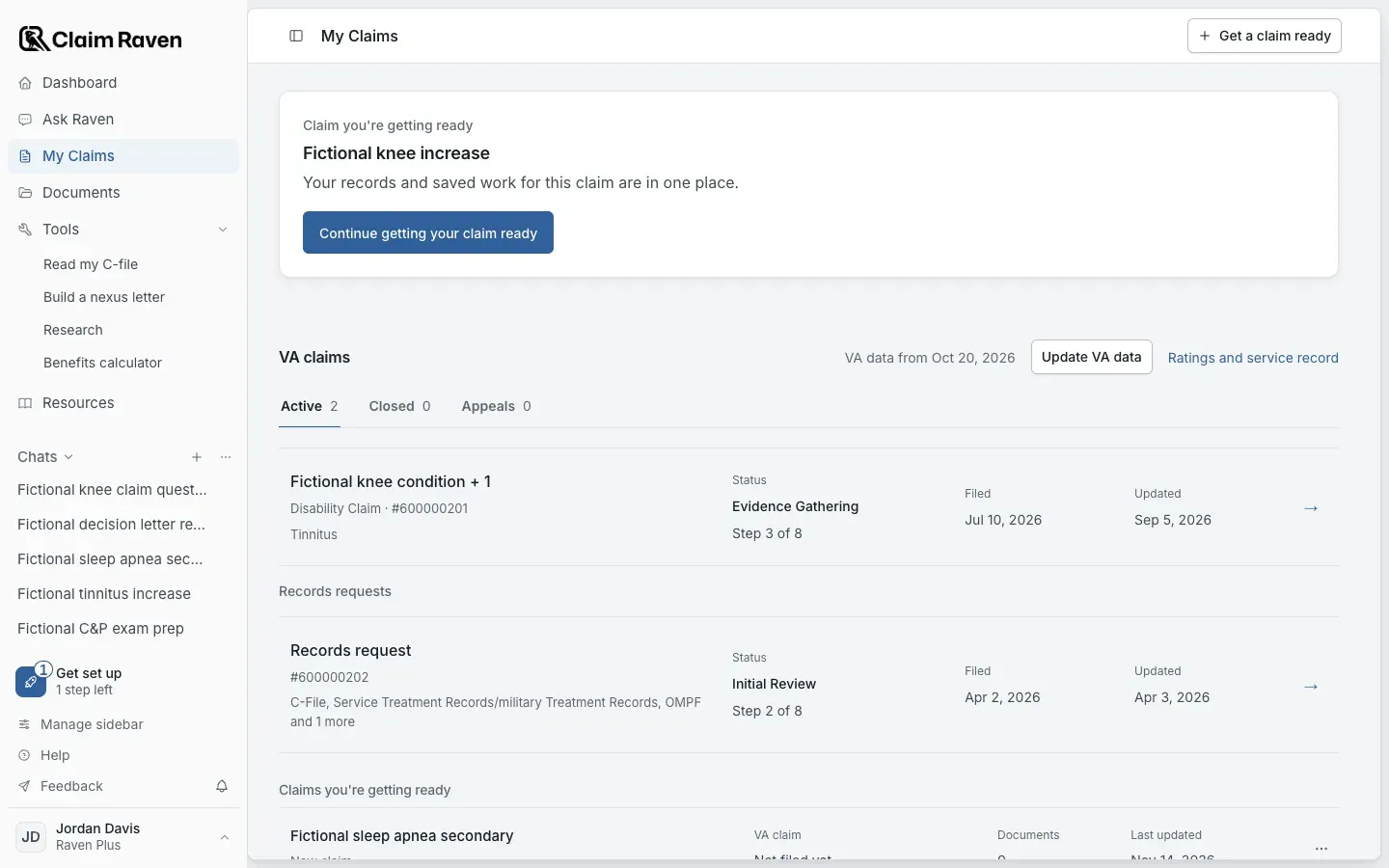
Actual app screen with fictional preview data.
Open the intended claim
Open My Claims in the sidebar and select the claim under VA claims. Check the claim identity before reading its status.
Read the source and date
The date of your VA data shows beside VA claims. Distinguish imported status from your own preparation notes. Check whether the information is current and complete.
Compare consequential details
Use VA.gov and your complete official notice before acting on a request or deadline.
Keep preparation separate
Use Action Plan for your own next steps. Open it from What to do next on the Dashboard. Completing one of those tasks does not update VA’s claim status.
If this does not work
The displayed state does not match what you expected
- Check the account, claim and selected record.
- Read the current source, date and status label.
Preserve the original record and any unsaved text. Describe the screen and message to support without sending private records.
Return to your preparation
Check the source and current state before continuing.
Useful links
Related articles
Was this helpful?
Still need help? Ask the team