Get a claim ready and keep its preparation together
Create a claim preparation, add records and return to its findings, tasks and saved drafts.
Written By Landon
Last updated 1 day ago
A claim you're getting ready groups related preparation. It brings together selected records, findings, tasks, drafts and notes without moving the originals out of Documents. These claims are listed on My Claims, under Claims you're getting ready. Getting a claim ready does not file anything with VA.
Recent work labels an untouched original saved. Properties counts linked records separately from analyzed records, so adding a file does not increase the analyzed count.
Get a claim ready and add records
Find the controls
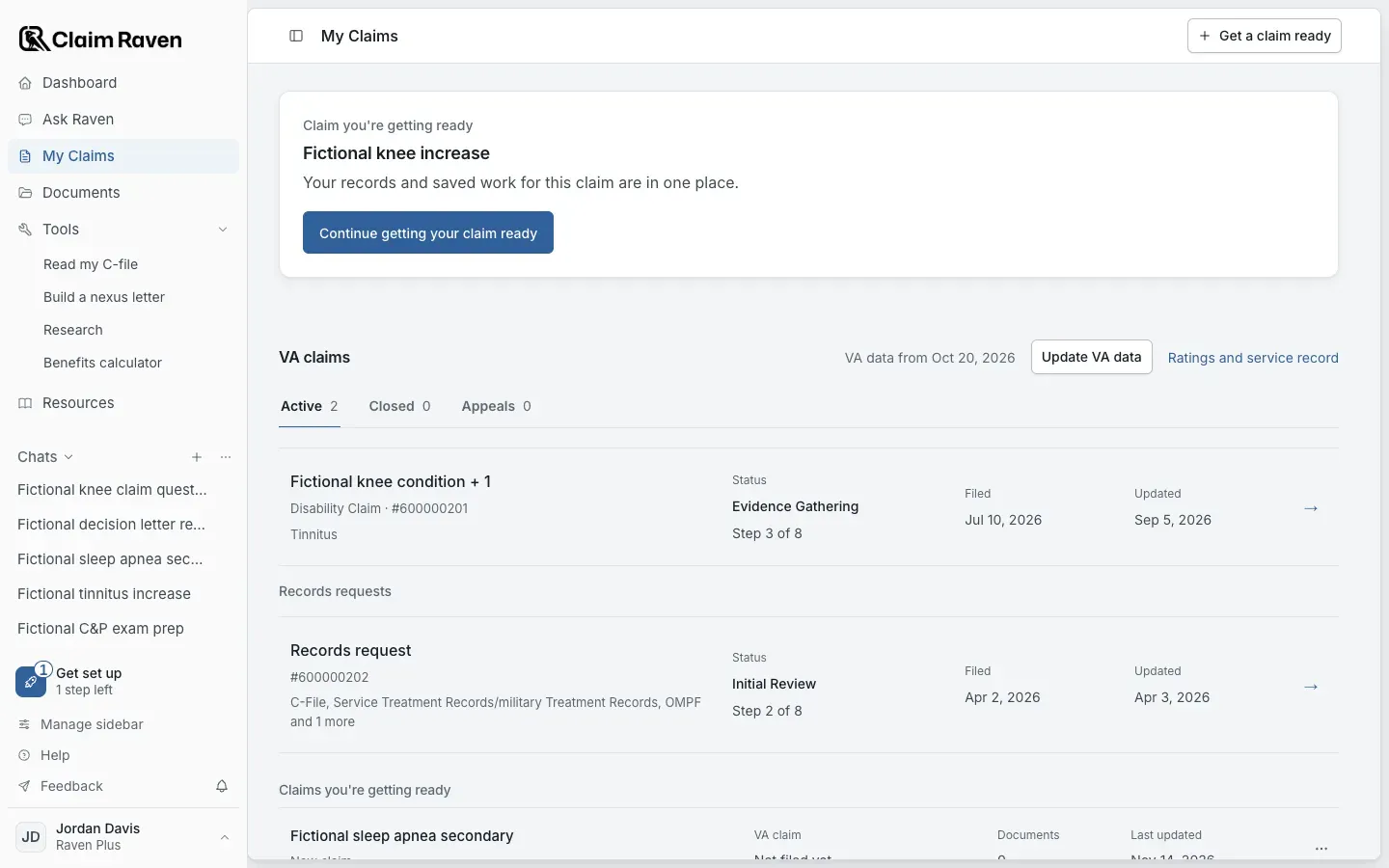
My Claims with fictional account data and a fictional claim you're getting ready.
Open My Claims and select Get a claim ready
Follow the form and check the plan limit shown on My Claims.
Name the claim
Use a name that describes the work you want to keep together.
Open Documents inside the claim and choose Add documents
Select the saved originals you want to link.
Review the linked file names
Open one to confirm that it is the intended original.
Add documents links saved originals without starting analysis. Upload & review is a different intake action; read its review and consent information before continuing.
Find your work again
Use Overview for the claim summary, Documents for its selected sources, Findings for saved findings, and Plan for preparation tasks. Drafts & notes brings together saved outputs linked to the claim. Activity helps you return to recent work.
Open Ask Raven from the claim to carry that scope into the conversation. Check the record coverage in an answer; a linked but unread original does not automatically contribute its full text.
Save changes in the tool where you make them. Moving between app views can preserve unfinished work for the session, but a browser reload is not a save.
Rename, archive or delete a claim
On My Claims, each claim has a row menu with Rename & edit, Archive and Delete. Archive happens at once, and a Claim archived notice offers Undo for five seconds. Archived claims keep their records and saved work. Select Show archived on My Claims to see them, then use the row menu to restore one. Delete permanently deletes the claim and all of its documents, analysis and findings. It cannot be undone, and nothing changes at VA.
Removing a document from a claim does not remove the account's original from Documents. My Claims also has a Prepare a VSO handoff link.
A claim you're getting ready organizes preparation. Its contents and task count do not by themselves establish that it is complete or that anything was submitted to VA.
If this view is unavailable in your account, use the access message shown there. Availability and review allowances depend on the account and the current rollout.
If this does not work
A claim or record seems missing
- On My Claims, check Claims you're getting ready, then select Show archived.
- Open the claim’s Documents view and compare its selection with Documents.
A record can remain in Documents without being linked to this claim. Use Add documents to select an existing original. A saved label does not mean the original has been analyzed.
For product help, describe the page, the message shown and what you were trying to do. Keep private records and account details out of screenshots.
Useful links
Related articles
Was this helpful?
Still need help? Ask the team