Keep your condition information together
Add a condition, link its records and keep your preparation separate from official VA decisions.
Written By Landon
Last updated 1 day ago
Conditions keeps your entries, linked records and preparation in one place. Your saved details stay separate from imported VA ratings and decisions. The page has three tabs: Conditions, Suggestions and Medications.
Open Conditions
Conditions is not in the sidebar unless you add it. On the Dashboard, select View all beside Your conditions. While you are on Conditions, the sidebar highlights Dashboard. To keep a Conditions link in the sidebar, open Manage sidebar and select the eye beside Conditions.
Add a condition
Find the controls
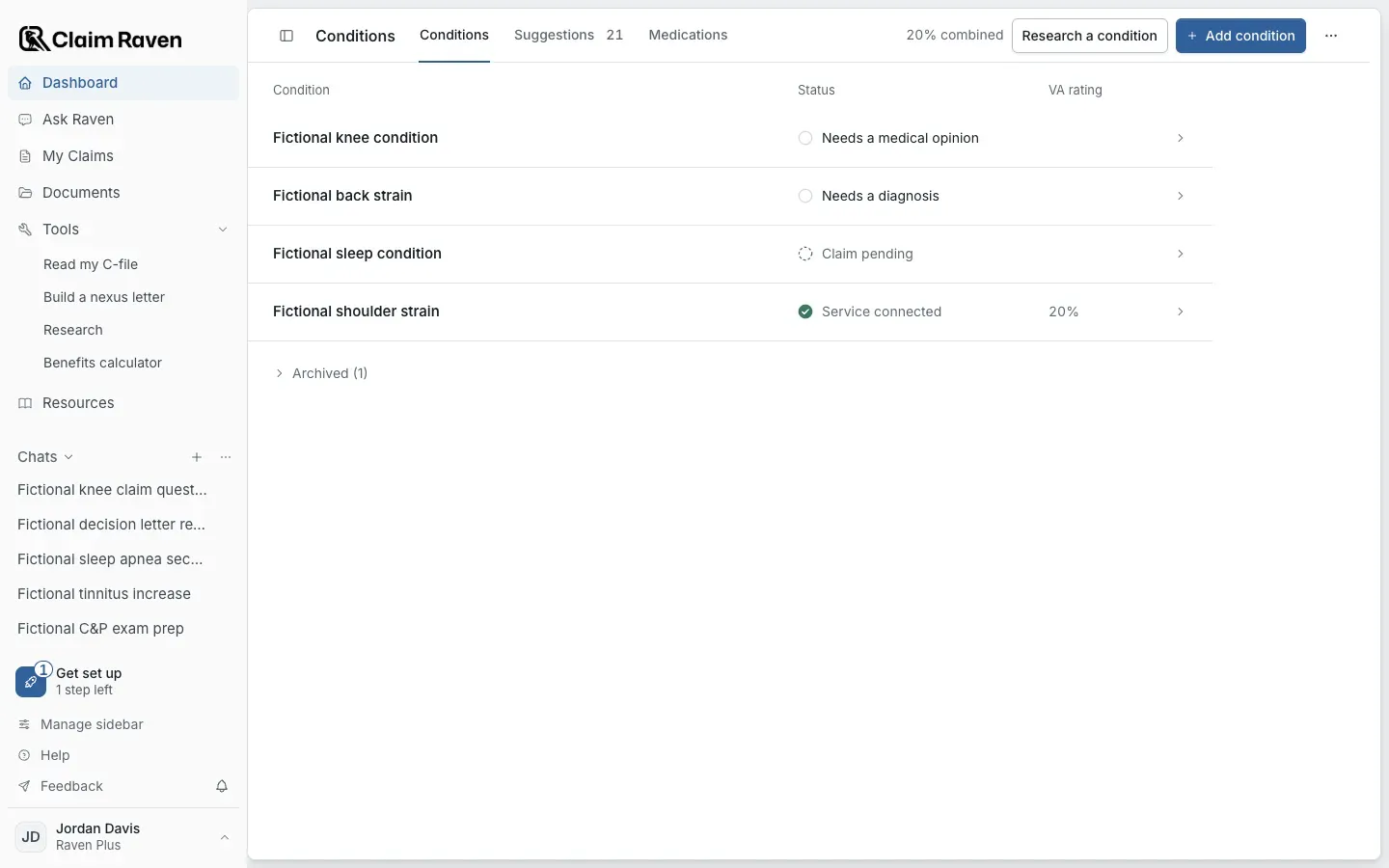
Actual app screen with fictional preview data.
Select Add condition
Use the Conditions tab. On the Medications tab, the same button reads Add medication.
Enter the Condition name
Choose the Diagnosis status that matches what you know.
Set VA status and answer Has VA assigned a rating for this condition?
Not sure / not entered, No, and Yes, including a 0% rating mean different things.
Select Save condition
Enter a Current rating or Effective date only when you have the source to support it.
Expected result: The condition's own page opens.
To change the details later, open the condition and select More condition options > Edit details. Changing your personal entry does not change a VA decision.
Link records to a condition
Open the condition and select the Evidence tab. Select Link records, then select Link beside each saved original you want. The originals stay in Documents. Select a linked record's name to open it, or Unlink to remove the link without deleting the document.
The Overview tab shows the condition's next step, its Action Plan tasks and the tools that fit what is still missing. The Research tab opens related reference material. Check the named reference before you use it, especially when your condition has another name or no exact match. General research is separate from evidence about you.
Review a suggestion
The Suggestions tab lists conditions found in your synced VA claims, analyzed VA letters, your latest medical record review (the tab still calls it your Raven Scan record) and your case file, grouped by source. Its count shows beside the tab name. Select Show details to check a suggestion and choose what to save, or Dismiss to remove it. Select the suggestions you want and select Save selected. Nothing is saved until you do.
Check for an existing entry before adding another. Saving a suggestion is your choice; a mention in a record does not change your diagnosis or rating on its own.
Archive or restore a condition
Open the condition and select More condition options > Archive condition. The condition leaves the active list and keeps its notes and evidence links. A notice offers Undo for five seconds; Command Z (Control Z on Windows) also works while the notice shows.
To bring it back, select Archived at the end of the Conditions list, open the condition and select More condition options > Restore condition. If a task or tool cannot use an archived condition, restore it or check that you chose the right condition, rather than choosing a different one to get past the message.
Keep your medications with your conditions
The Medications tab keeps a list of the medications and treatments you use or have used, and which conditions each one is for. See Keep a list of your medications and treatments.
If this does not work
A condition or linked record is missing
- Select Archived at the end of the Conditions list. A search box appears once you have more than six conditions.
- Open the intended condition and check its Evidence tab.
Restore an archived condition when you need it active. Use Link records to choose an existing saved original instead of uploading another copy.
For product help, describe the page, the message shown and what you were trying to do. Keep private records and account details out of screenshots.
Useful links
Related articles
Was this helpful?
Still need help? Ask the team