Find your records and saved work
Find your original documents, saved tasks, chats and claim preparation from the Dashboard and the sidebar.
Written By Landon
Last updated 1 day ago
The Dashboard is your starting point. Use Documents for original files, Ask Raven for your chats, Action Plan for next steps, and My Claims to keep related records and preparation together in a claim you're getting ready.
Choose where to start
Find your starting controls
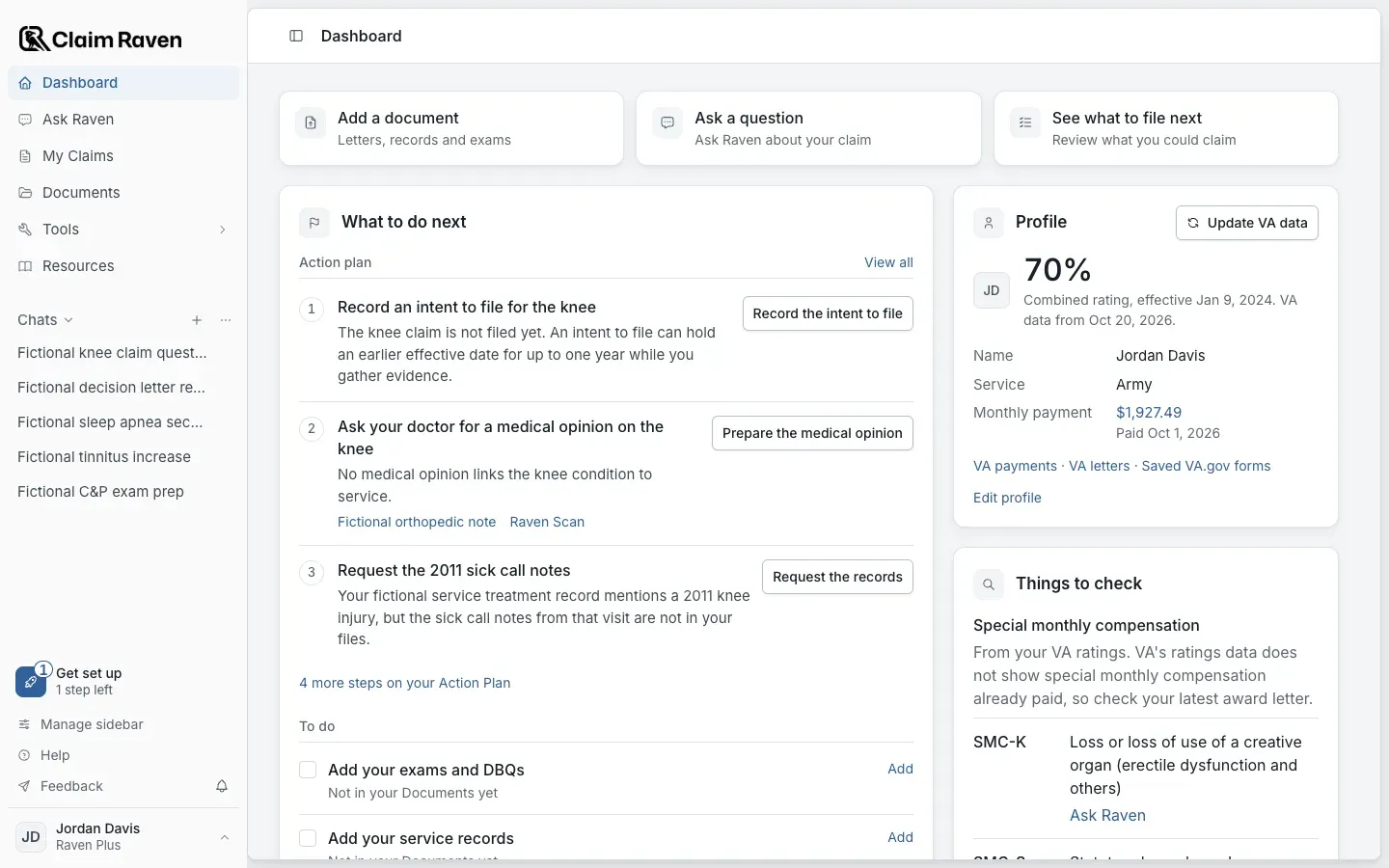
Actual app screen with fictional preview data. Replaces the retired Home screen.
Open Documents to add or find an original file
Saving a file and reviewing it are separate steps. Read the choices before starting a review. Search, Timeline and Notes are tabs at the top of Documents.
Open Action Plan to choose a task, accept a useful suggestion or add your own task
On the Dashboard, select View all beside Action plan in What to do next. You can keep a task without assigning a condition or claim.
Open My Claims and choose Get a claim ready when you want related records, tasks, drafts and notes in one place
Link existing originals instead of uploading another copy.
Open a chat from Chats in the sidebar
Your Ask Raven chats are listed below Resources. Select Chats to fold the list open or shut.
Pin a page you return to often
Open the page, then choose Pin this page to sidebar in the account menu. You can pin up to 10 pages.
Return to saved work
Open the original feature and choose the saved record, task, conversation or draft. When a task has a saved output, its link returns to that output.
- Statements you write with Ask Raven are in Documents, under Your writing.
- Originals saved earlier in a chat or a claim you're getting ready are in Documents, under Earlier saved originals.
- Letter reviews, DBQ reviews and medical record reviews you saved before they moved to Documents are under Earlier reports.
Save before leaving
Use the save control for the feature you are editing and wait for confirmation. Do not rely on a browser refresh to recover unsaved work.
In Ask Raven, a message you started typing stays with its chat in this browser until you send it or sign out. It is dropped after seven days. It is not saved to your account, so another device does not see it.
If a tool shows a recovery notice, follow that notice before closing the page. Symptom entries and exam preparation have their own recovery controls; those controls do not establish recovery for other tools.
Undo a change
Some changes happen at once and show a notice with an Undo button for five seconds: archiving or pinning a chat, deleting one chat, archiving a claim, marking an Action Plan step done, dismissing a suggestion and archiving a condition. Select Undo, or press Command Z (Control Z on Windows) while the notice shows. The shortcut does not work while you are typing in a field.
Check the action before you start
The connected pages organize your work. Specialist reviews and tools keep their own access, consent and usage checks. Use the allowance displayed for the selected action. A saved draft or completed preparation task is not confirmation that anything was sent to VA.
If this does not work
Saved work is not where expected
- Open the feature where you saved it and check its list, search and filters.
- Check the condition or claim shown in a task link.
- If a page left your sidebar, open it from the Dashboard or add it back with Manage sidebar.
Moving a page in the sidebar does not delete saved work. If a save is unconfirmed, preserve your text and use that feature’s recovery notice before refreshing.
Useful links
Related articles
Was this helpful?
Still need help? Ask the team