Use your Dashboard
See your next steps, claims, VA ratings and service record in one place, and open the page behind each card.
Written By Landon
Last updated 1 day ago
Dashboard is the first item in the sidebar. Its cards read the same data as the pages they open, so nothing on the Dashboard is a separate copy. On a phone or tablet, the cards stack in one column.
Find the Dashboard cards
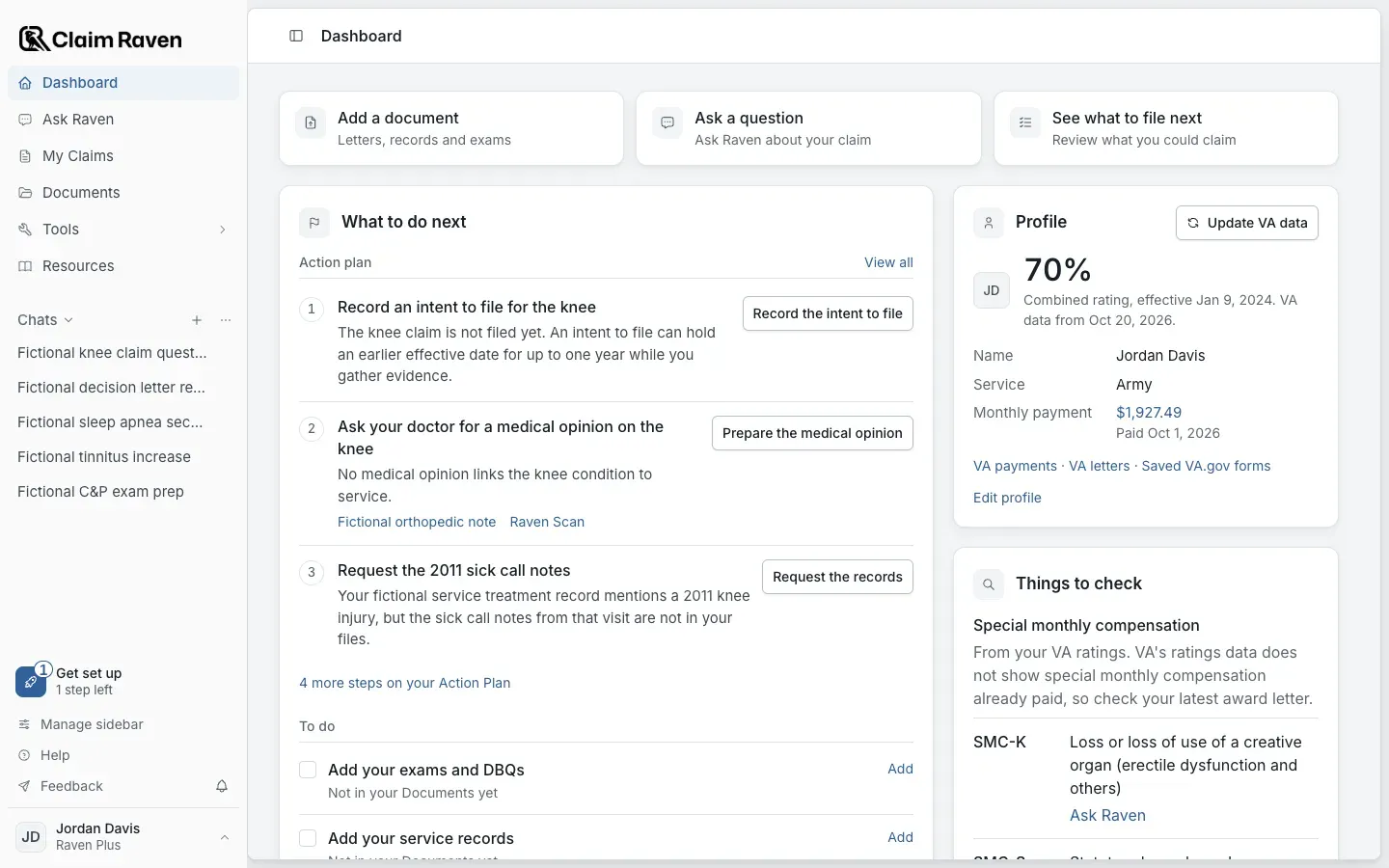
Actual app screen with fictional preview data.
Start a task from the top row
The three cards at the top of the Dashboard
Check what to do next
What to do next shows the first open steps from your Action Plan, each with a button that starts it. Select View all to open the full Action Plan, where you see why each step is there and add, edit and complete steps. Below the steps are deadlines, with their dates, and records you have not added yet, each with Add.
Open a card's full page
What each Dashboard card shows and opens
- Presumptive pathways that may apply are based on where and when you served. They are not a VA decision. VA still has to confirm the qualifying service.
- While you are on Conditions, Action Plan or Connect VA, the sidebar highlights Dashboard because the Dashboard opens them. To keep one of them in the sidebar, add it with Manage sidebar.
- Old links and bookmarks to the Your records page open the Dashboard at Your VA ratings.
Choose where Claim Raven opens
Open the account menu
Select your name at the bottom of the sidebar.
Turn on Start on Dashboard
With it off, Claim Raven starts in Ask Raven.
Expected result: The Claim Raven logo at the top of the sidebar opens the Dashboard.
A new account may first see the question What do you need help with today? Choose one of its three answers, or select Go to my dashboard. To see the question again, open Help in the sidebar and choose Show the start question.
If this does not work
A card is empty or says Connect VA
- Ratings, service periods and payments come from your VA data. Select Connect VA in the Profile card to import it.
- Your conditions and Medications and treatments show only what is on your Conditions page.
After an import, the cards fill in from that snapshot. A card that says it could not load has a Try again button.
A card shows different information than VA.gov
- Check the date of your VA data in the Profile card.
- Select Update VA data to import a newer snapshot.
VA.gov and your official VA notices are the record. Use them before you act on a rating, payment or date.
Open your Dashboard
Start from the card for what you want to do.
Related articles
Was this helpful?
Still need help? Ask the team