Arrange your sidebar
Show, hide and reorder the pages in your sidebar, pin a page of your own, and go back to the default at any time.
Written By Landon
Last updated 1 day ago
Manage sidebar is the sliders icon in the row of icons at the bottom of the sidebar, just above your name. It opens a small window beside the sidebar, or above the row on a phone. Each change shows in the sidebar at once and is saved to your account, so your sidebar looks the same on every device you sign in on.
Open Manage sidebar
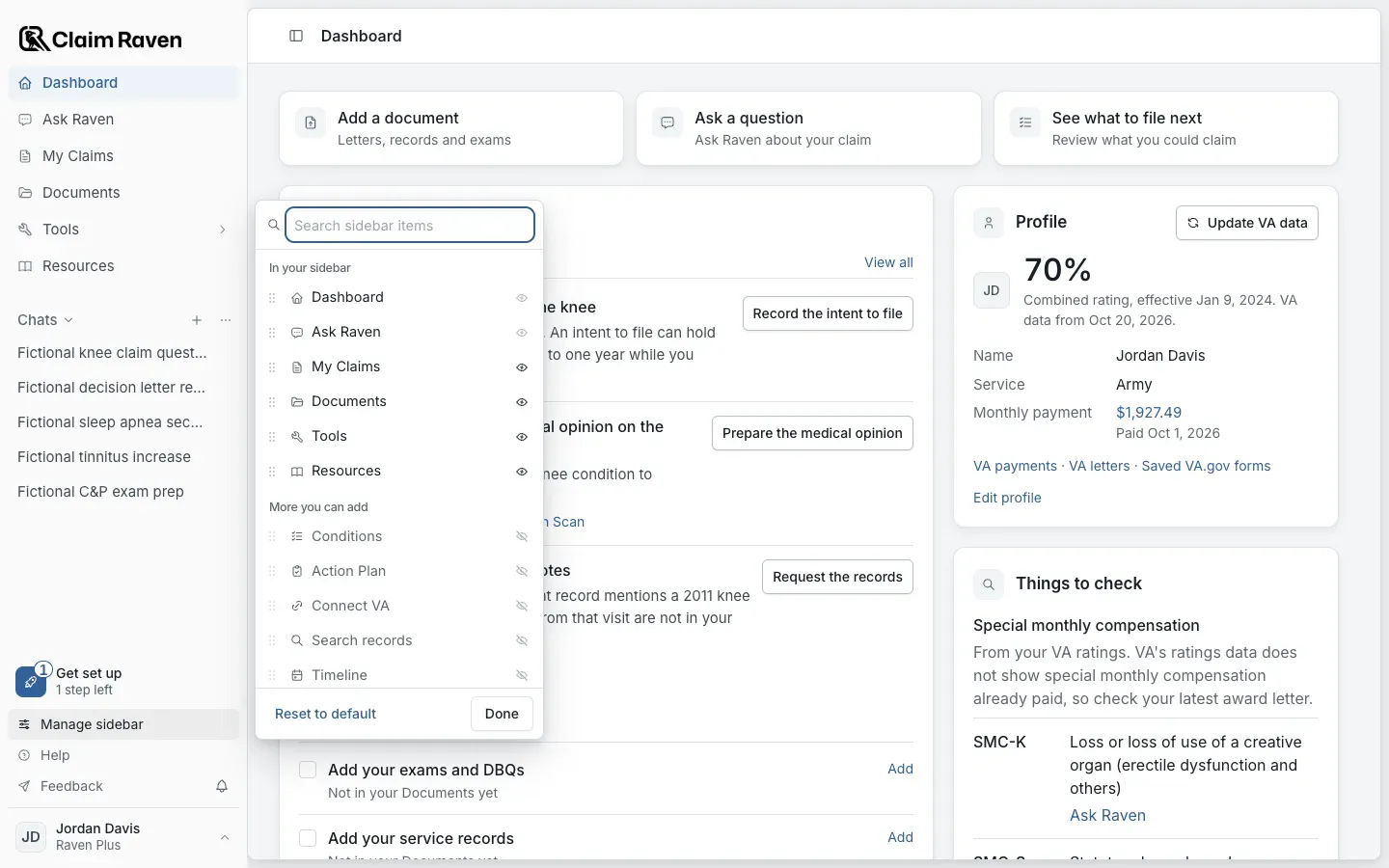
Actual app screen with fictional preview data.
Show or hide a page
Select Manage sidebar
In your sidebar lists the pages you see now. More you can add lists the rest.
Find the page
Type part of its name in Search sidebar items, or scroll the two lists.
Select the eye on its row
An open eye means the page is in your sidebar. A crossed-out eye means it is not.
Expected result: A page you show goes to the bottom of your sidebar. A page you hide moves to the top of More you can add.
Select Done
Your change is already saved. Done only closes the window.
- Dashboard and Ask Raven are always shown. Their eye cannot be turned off.
- More you can add starts with Conditions, Action Plan, Connect VA, Search records, Timeline and Notes. Each still opens from the Dashboard or from Documents when it is not in your sidebar.
- Some pages show only when your account has them, such as Pathfinder for enrolled members.
Move a page up or down
Select Manage sidebar
Clear the search box first. Pages cannot be moved while a search is typed.
Drag the handle at the left of the row
Drag it up or down among the pages under In your sidebar, then let go.
Expected result: The page takes its new place in your sidebar.
With a keyboard, press Tab until the handle of the row is focused, then press the up or down arrow key. Each press moves the page one place, and a screen reader hears its new position.
Pin a page of your own
Open the page you want to keep
For example, the Medications tab of Conditions.
Open the account menu and choose Pin this page to sidebar
The account menu opens from your name at the bottom of the sidebar. You can also select Pin this page at the bottom of Manage sidebar.
Expected result: The page shows at the bottom of your sidebar.
- You can pin up to 10 pages. To pin another, remove one first with the X on its row in Manage sidebar.
- Pin this page shows only on signed-in Claim Raven pages that are not already in your sidebar.
- A pinned page is named after the page's title. Move or hide it in Manage sidebar like any other page.
Go back to the default sidebar
Select Manage sidebar, then Reset to default
Your pinned pages are kept. They move to More you can add, so you can show them again.
Expected result: Your sidebar shows the default pages in the default order: Dashboard, Ask Raven, My Claims, Documents, Tools and Resources, plus Pathfinder if you are enrolled.
If this does not work
Manage sidebar says Your sidebar was not saved
- Check your connection.
- Make the change again.
If saving keeps failing, contact support with the page address and the message shown.
You cannot drag a page
- Clear Search sidebar items.
- Check that the page is under In your sidebar. Pages under More you can add are shown first, then moved.
Select the eye to show the page, then drag its handle.
Arrange your sidebar
Open Claim Raven and select Manage sidebar, the sliders icon at the bottom of the sidebar.
Related articles
Was this helpful?
Still need help? Ask the team